
Converting a cron job to a systemd timer with tui-cron
A nightly backup runs from root's crontab and you want it as a systemd timer, with a next run you can see and a run missed while the machine was off caught up. One walk through tui-cron on a real machine, from reading both schedulers on one screen to removing the old cron line, with every preview dialog as the tool showed it.
Everything below was run on 2026-10-23 with
tui-cron v0.2.4,
installed from the apt repository in an Ubuntu 24.04.5 container with systemd
255 as PID 1 and Debian’s cron (3.0pl1-184ubuntu2). The screens and dialogs
are copied from the terminal, without the dialog borders and with blank
padding lines removed; nothing in them was retyped. The screenshot is the
tool’s own, from --demo.
The job is a small one written for this walk-through: a script,
/usr/local/bin/nightly-backup, that archives /srv/www into
/var/backups/www and appends a line to /var/log/nightly-backup.log. It
runs from root’s crontab, next to a weekly report line:
MAILTO=ops@example.com
PATH=/usr/local/sbin:/usr/local/bin:/usr/sbin:/usr/bin:/sbin:/bin

# Nightly backup of the web root
30 2 * * * /usr/local/bin/nightly-backup
# Weekly report
15 6 * * 1 /usr/bin/du -sh /var/backups/www >> /var/log/backup-size.log
Install and open it
$ sudo apt install tui-cronThe repository setup is on the install page. The job lives in
root’s crontab and the timer goes to /etc/systemd/system, so the tool was run
as root and its commands carry no sudo. The README covers running it as an
ordinary user, where each change escalates through sudo -n.
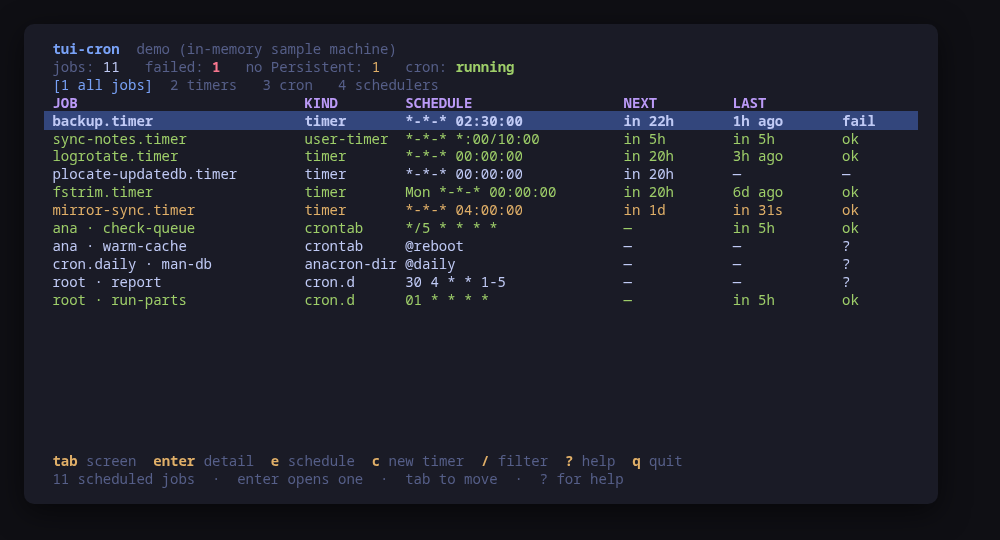
Both schedulers on one screen (1)
The first screen merges the systemd timers, the crontabs, /etc/crontab,
/etc/cron.d and the scripts in /etc/cron.daily into one list. On this
machine, 21 jobs (trimmed):
 tui-cron  systemctl (root) · crontab (root)
jobs: 21   no Persistent: 1   cron: running   backend: systemd 255
[1 all jobs]  2 timers   3 cron   4 schedulers
JOB                                                       KIND        SCHEDULE                                              NEXT         LAST
apt-daily.timer                                           timer       *-*-* 06,18:00:00                                     in 1h        —            —
dpkg-db-backup.timer                                      timer       *-*-* 00:00:00                                        in 6h        —            —
logrotate.timer                                           timer       *-*-* 00:00:00                                        in 6h        —            —
cron.daily · logrotate                                    anacron-dir @daily                                                —            —            ?
root · cd                                                 cron.d      17 * * * *                                            —            —            ?
root · du                                                 crontab     15 6 * * 1                                            —            —            ?
root · nightly-backup                                     crontab     30 2 * * *                                            —            —            ?
The SCHEDULE column is the expression exactly as written. A cron line has no
NEXT: cron does not publish one. The ? in the last column is not a failure:
cron records no exit status anywhere, and the tool says so rather than
guessing.
3 narrows the list to the cron half, with a WHERE column for each line’s
file and line number. On Ubuntu root’s table is
/var/spool/cron/crontabs/root; v0.2.4 names it /var/spool/cron/root there
and in its dialogs. The tool never opens that
file either way: every change goes through crontab.
What the schedule means (enter)
enter opens one job. The reads as line is the expression in English, next
to the expression itself, so you compare the two:
 root · nightly-backup

 kind           crontab
 schedule       30 2 * * *
 reads as       Every day at 02:30
 runs           /usr/local/bin/nightly-backup
 as             root
 written at     /var/spool/cron/root:5
 next run       — (cron does not publish a next run; the schedule is the answer)
 last run       — (it has not run)
 last result    — — cron's log has no line for this job in the last week
 enabled        yes   state installed

What the log says
 cron logged nothing for this job in the last week.
 cron records that a command started, and cronie also that it
 returned; neither records an exit status. Whatever the job
 printed went to the mail cron sends, not to the journal.

 e changes it · d removes it · t writes a timer for it · a adds one
The same screen on a timer adds the next five runs, computed by
systemd-analyze calendar, and the unit files as systemd has them. esc goes
back to the list.
Write the timer (t)
t on the cron line builds a .timer and a .service from it, has
systemd-analyze verify check both, and shows what it will write:
Write a timer for root · nightly-backup

✓ accepted by systemd-analyze verify /tmp/tui-cron-2757380432/tui-cron-nightly-backup.timer /tmp/tui-cron-3716130522/tui-cron-nightly-backup.service

checked with: systemd-analyze verify /tmp/tui-cron-2757380432/tui-cron-nightly-backup.timer /tmp/tui-cron-3716130522/tui-cron-nightly-backup.service

The cron line in /var/spool/cron/root:5 is left exactly as it is, and the new timer is written but NOT enabled — otherwise the job would run twice.
Read the units, enable the timer, then delete the cron line with d.

--- /dev/null
+++ /etc/systemd/system/tui-cron-nightly-backup.timer
@@ -1,0 +1,12 @@
+# Written by tui-cron on 2026-10-23 17:45:09 UTC.
+
+[Unit]
+Description=Converted from /var/spool/cron/root:5 by tui-cron (timer)
+
+[Timer]
+OnCalendar=*-*-* 02:30:00
+Persistent=true
+Unit=tui-cron-nightly-backup.service
+
+[Install]
… 12 more diff lines

Command to run:
$ install -m 644 /tmp/tui-cron-3716130522/tui-cron-nightly-backup.service /etc/systemd/system/tui-cron-nightly-backup.service
$ install -m 644 /tmp/tui-cron-2757380432/tui-cron-nightly-backup.timer /etc/systemd/system/tui-cron-nightly-backup.timer
$ systemctl daemon-reload
The dialog does not scroll, so it cuts the diff and says how many lines it
left out; on a 45-line terminal and on a 75-line one alike, the service file
was in the part left out. y ran the three commands, and the two files were
then read from a shell:
# Written by tui-cron on 2026-10-23 17:45:09 UTC.

[Unit]
Description=Converted from /var/spool/cron/root:5 by tui-cron

[Service]
Type=oneshot
ExecStart=/usr/local/bin/nightly-backup
The timer ends with WantedBy=timers.target under [Install]. Two things
changed on the way that are worth knowing. Persistent=true means a 02:30 run
missed while the machine was off now happens at the next boot, which cron
never did. And the MAILTO= and PATH= lines of the crontab do not travel:
the service runs with systemd’s environment and its output goes to the
journal, not to mail. A script that relies on cron’s PATH should set its own.
A line that uses the shell is refused
The weekly du line writes with >>. cron hands its command to /bin/sh;
systemd runs ExecStart itself, with no shell. t on that line wrote
nothing, and the status line said why (cut at the terminal’s width):
this line uses the shell (> >), and a systemd service has none: ExecStart is run directly, so a pipe or a redirection would be passed to the program as text.…
The rest of the message, from the source at the tag, is “Put the pipeline in a
script and convert that”. @reboot lines and lines that set both a day of the
month and a weekday are refused the same way, as the
README
explains.
Enable and arm it (2, then E and s)
2 is the timers screen. The new timer is on it straight away, read from the
file on disk even though systemd has not loaded it, with no next run:
 tui-cron-nightly-backup.timer
 schedule       *-*-* 02:30:00
 reads as       Every day at 02:30
 next run       — (not armed: the timer unit is inactive)
 enabled        no   state inactive
 activates      tui-cron-nightly-backup.service
 Persistent     true — a run missed while the machine was off is caught up

The next runs
 Sat 2026-10-24 02:30:00 UTC
 Sun 2026-10-25 02:30:00 UTC
 Mon 2026-10-26 02:30:00 UTC
 Tue 2026-10-27 02:30:00 UTC
 Wed 2026-10-28 02:30:00 UTC
 computed by systemd itself, not by this tool
Enabling and arming are two keys, because they are two different things:
Enable tui-cron-nightly-backup.timer
Make tui-cron-nightly-backup.timer start at boot.
Command to run:
$ systemctl enable tui-cron-nightly-backup.timer
Arm tui-cron-nightly-backup.timer
Load tui-cron-nightly-backup.timer now, so it starts counting down.
Command to run:
$ systemctl start tui-cron-nightly-backup.timer
After y on both, the row had a next run:
 TIMER                                        ONCALENDAR                               NEXT         PERSIST  ACTIVATES
logrotate.timer                              *-*-* 00:00:00                           in 6h        yes      logrotate.service                          —
apt-daily.timer                              *-*-* 06,18:00:00                        in 6h        yes      apt-daily.service                          —
tui-cron-nightly-backup.timer                *-*-* 02:30:00                           in 8h        yes      tui-cron-nightly-backup.service            —
Run it once now (n)
Waiting until 02:30 proves nothing today. n starts the service, not the
timer:
Run tui-cron-nightly-backup.timer now
Run tui-cron-nightly-backup.service now, without waiting for tui-cron-nightly-backup.timer.
It runs as it would on its schedule, now, whatever else is happening on this machine.
Command to run:
$ systemctl start tui-cron-nightly-backup.service
Then, from a shell:
2026-10-23T17:46:50+00:00 backup ok: www-2026-10-23.tar.gz
NEXT                        LEFT LAST PASSED UNIT                          ACTIVATES
Sat 2026-10-24 02:30:00 UTC   8h -         - tui-cron-nightly-backup.timer tui-cron-nightly-backup.service

1 timers listed.
enabled
active
Remove the old cron line (3, then d)
Only now does the cron line go. / filters the screen (it matches any column,
and the filter stays when you switch screens, so clear it with / and an
empty line). On the cron screen, d on the line shows the whole table as it
will be after, and replaces it through cron’s own interface:
Remove the cron line at /var/spool/cron/root:5

✓ checked against tui-cron's own cron parser; cronie's `crontab -T` exists but Debian's cron has no equivalent, so the check is the same one on every
machine

--- /var/spool/cron/root
+++ /var/spool/cron/root
@@ -3,5 +3,4 @@

# Nightly backup of the web root
-30 2 * * * /usr/local/bin/nightly-backup
# Weekly report
15 6 * * 1 /usr/bin/du -sh /var/backups/www >> /var/log/backup-size.log

Command to run:
$ crontab /tmp/tui-cron-2169681167/crontab
d removes the line and nothing else: the comment above it stays, as do
MAILTO= and PATH=. Delete the orphaned comment with crontab -e if it
bothers you.
MAILTO=ops@example.com
PATH=/usr/local/sbin:/usr/local/bin:/usr/sbin:/usr/bin:/sbin:/bin

# Nightly backup of the web root
# Weekly report
15 6 * * 1 /usr/bin/du -sh /var/backups/www >> /var/log/backup-size.log
Move it to another time, without touching the unit file (e)
Say the backup should skip Sundays and start at 03:15. e on the timer opens
a form; for a timer this tool wrote, it offers the command too. The reading
updates as you type:
Change tui-cron-nightly-backup.timer
> OnCalendar  Mon..Sat *-*-* 03:15:00
ExecStart   /usr/local/bin/nightly-backup
reads as: Monday to Saturday at 03:15
systemd's calendar syntax: daily, weekly, Mon..Fri 09:00, *-*-01
04:30:00.
Written to /etc/systemd/system/tui-cron-nightly-backup.timer.d/90-tui-c…
tab next  ←/→ change  space list  enter review  esc cancel
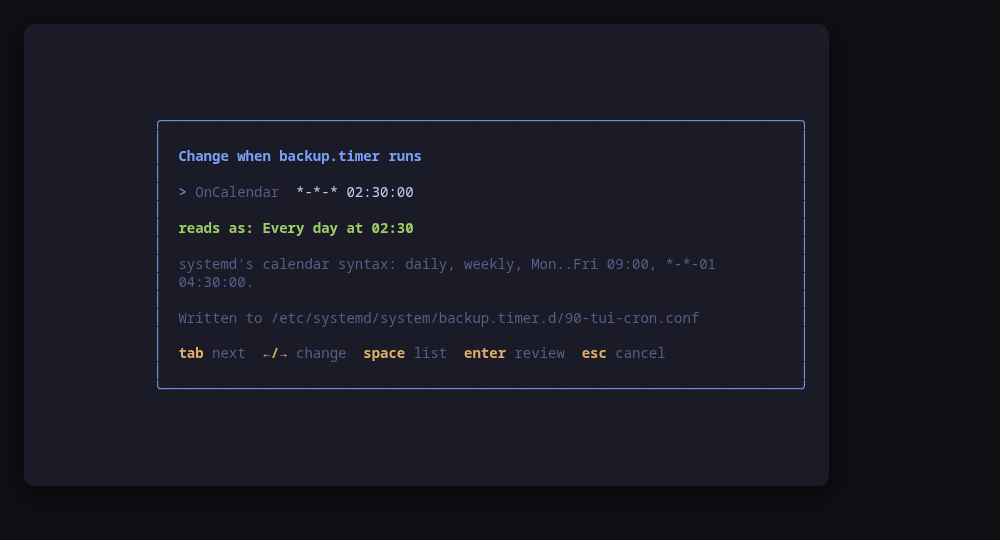
enter hands the expression to systemd-analyze calendar before asking
anything, and writes a drop-in rather than editing the unit:
Change tui-cron-nightly-backup.timer
✓ systemd reads it as Mon..Sat *-*-* 03:15:00
checked with: systemd-analyze calendar --iterations=1 'Mon..Sat *-*-* 03:15:00'
--- /dev/null
+++ /etc/systemd/system/tui-cron-nightly-backup.timer.d/90-tui-cron.conf
@@ -1,0 +1,7 @@
+# Written by tui-cron, and rewritten whole on every change.
+# The empty OnCalendar= below clears what the unit file set, so
+# what follows replaces it rather than being added to it.
+
+[Timer]
+OnCalendar=
+OnCalendar=Mon..Sat *-*-* 03:15:00
Command to run:
$ install -d -m 755 /etc/systemd/system/tui-cron-nightly-backup.timer.d
$ install -m 644 /tmp/tui-cron-1363619593/90-tui-cron.conf /etc/systemd/system/tui-cron-nightly-backup.timer.d/90-tui-cron.conf
$ systemctl daemon-reload
$ systemctl restart tui-cron-nightly-backup.timer
The empty OnCalendar= matters: without it systemd would add the new schedule
to the old one and fire on both. After y, systemd agreed, and the unit file
still said 02:30 on line 8:
NEXT                        LEFT LAST                        PASSED UNIT                          ACTIVATES
Sat 2026-10-24 03:15:00 UTC   9h Fri 2026-10-23 17:46:16 UTC      - tui-cron-nightly-backup.timer tui-cron-nightly-backup.service

8:OnCalendar=*-*-* 02:30:00
17:# The empty OnCalendar= below clears what the unit file set, so
21:OnCalendar=
22:OnCalendar=Mon..Sat *-*-* 03:15:00
Undo (d on the timer, a on the cron screen)
d removes a timer only when both its files are in /etc/systemd/system and
carry the Written by tui-cron header, and only after you type its name:
Remove tui-cron-nightly-backup.timer and tui-cron-nightly-backup.service
✓ both files carry this tool's own "Written by tui-cron" header and are in /etc/systemd/system, so they are ours to remove
Command to run:
$ systemctl disable --now tui-cron-nightly-backup.timer
$ rm -f -- /etc/systemd/system/tui-cron-nightly-backup.timer
$ rm -f -- /etc/systemd/system/tui-cron-nightly-backup.service
$ rm -f -- /etc/systemd/system/tui-cron-nightly-backup.timer.d/90-tui-cron.conf
$ systemctl daemon-reload
The empty tui-cron-nightly-backup.timer.d directory was left behind; remove
it with rmdir if you want the directory clean. Then a on the cron screen
put the line back. As root it first asks which table; with “your own crontab”,
30 2 * * * and the command, the review was:
Add a line to root's crontab
--- /var/spool/cron/root
+++ /var/spool/cron/root
@@ -5,2 +5,3 @@
# Weekly report
15 6 * * 1 /usr/bin/du -sh /var/backups/www >> /var/log/backup-size.log
+30 2 * * * /usr/local/bin/nightly-backup
Command to run:
$ crontab /tmp/tui-cron-947497974/crontab
What this does not show
- Timers in a user’s own manager (
systemctl --user): this container had no user session. - Converting a line from another account’s crontab or from
/etc/cron.d. The line here was root’s, and the servicetwrote has noUser=line. - Cronie (Fedora, Arch). The run was on Debian’s cron; the tool page and the README say what each one records.