
Fixing a failed service with tui-systemd
A service failed and you want to know why, fix it, make it restart on its own, start it at boot and give it a nightly timer. One walk through tui-systemd on a real machine, with every preview dialog as the tool showed it.
Everything below was run on 2026-10-07 with
tui-systemd v0.2.2,
installed from the apt repository on an Ubuntu 24.04 machine (systemd 255).
The screens and dialogs are copied from the terminal, without the dialog
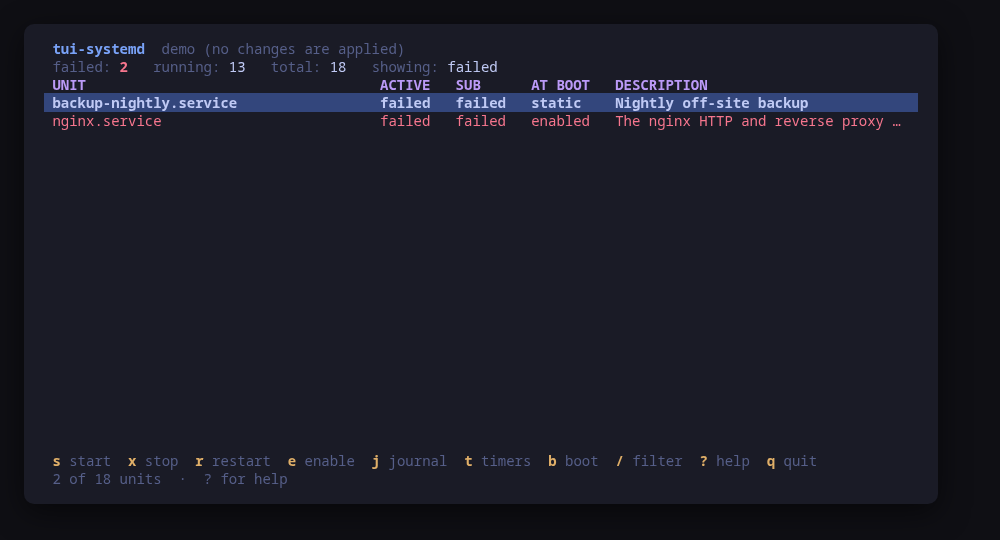
borders; nothing in them was retyped. The screenshot is the tool’s own, from
--demo.
The service is a small one written for this walk-through: report-sync, a
script that exits with an error until its configuration file exists. Any
service of yours that fails at start behaves the same way on screen.
Install and open it
$ sudo apt install tui-systemdThe repository setup is on the install page. Run tui-systemd as
yourself. Reading needs no privileges: the unit list, the journal, the unit
files and the timers all answer an ordinary user. Only a change escalates,
through sudo -n, which never prompts, so run sudo -v in another terminal
first, or start the tool with sudo.
What failed, first
A failed unit sorts to the top of the list, always. On this machine there was one among 544:
failed: 1   running: 272   total: 544   showing: all   backend: systemd 255
UNIT                                           ACTIVE   SUB      AT BOOT   DESCRIPTION
report-sync.service                            failed   failed   disabled  Nightly report sync
-.mount                                        active   mounted  generated Root Mount
-.slice                                        active   active   -         Root Slice
tab cycles the list between all, failed, active and inactive units, and /
filters by name, description or state.
Why it failed (j, c)
j opens the unit’s journal without leaving the tool. f there follows it,
re-reading every two seconds.
report-sync.service  journal · last 200 lines
state: failed   sub: failed   at boot: disabled   following: no
Oct 07 03:43:05 ubuntu systemd[1]: Started report-sync.service - Nightly report sync.
Oct 07 03:43:05 ubuntu report-sync[4469]: report-sync: cannot read /etc/report-sync.conf: No such file or directory
Oct 07 03:43:05 ubuntu systemd[1]: report-sync.service: Main process exited, code=exited, status=1/FAILURE
Oct 07 03:43:05 ubuntu systemd[1]: report-sync.service: Failed with result 'exit-code'.
c shows the unit as systemd assembles it, the fragment and every drop-in,
each under its path. That is where to look before changing a property, because
it answers where the property is set today:
# /etc/systemd/system/report-sync.service
[Unit]
Description=Nightly report sync

[Service]
ExecStart=/usr/local/bin/report-sync

[Install]
WantedBy=multi-user.target
Make it restart on its own (E)
The cause is a missing file, but a service like this one should also come back
by itself after a crash. E opens a form over a closed set of properties
(Restart, RestartSec, MemoryMax, CPUQuota, Environment, Nice, and
OnCalendar on a timer), each offered with the values systemd accepts. Here
Restart was set to on-failure with ←/→, and RestartSec to 5s.
enter does not write anything yet. It renders the whole drop-in, stages it in
a private temporary directory beside the unit, runs systemd’s own parser on it,
and only then shows the dialog:
Write /etc/systemd/system/report-sync.service.d/90-tui-systemd.conf

✓ accepted by systemd-analyze verify /tmp/tui-systemd-232686716/report-sync.service

systemd will re-read the file, but a unit that is already running keeps the settings it started with until it
is restarted.

--- /dev/null
+++ /etc/systemd/system/report-sync.service.d/90-tui-systemd.conf
@@ -1,0 +1,7 @@
+# Written by tui-systemd, and rewritten whole on every change.
+# Only the properties tui-systemd offers appear here; anything else you
+# add by hand is lost the next time this file is written.
+
+[Service]
+Restart=on-failure
+RestartSec=5s

Command to run:
$ /usr/bin/sudo -n install -d -m 0755 /etc/systemd/system/report-sync.service.d
$ /usr/bin/sudo -n install -m 0644 /tmp/tui-systemd-232686716/report-sync.service.d/90-tui-systemd.conf
/etc/systemd/system/report-sync.service.d/90-tui-systemd.conf
$ /usr/bin/sudo -n systemctl daemon-reload
y ran those three commands and nothing else. systemd-analyze verify prints
a warning and still exits 0 for a value it would ignore, so the tool treats any
output from it as a refusal: a line systemd would skip never reaches /etc.
Fix the cause and restart (r)
The journal named the missing file, so it was created in a shell:
$ echo "host=reports.example.internal" | sudo tee /etc/report-sync.confThen r on the unit:
Restart report-sync.service

The unit will be stopped and started again, dropping its current connections.

Command to run:
$ /usr/bin/sudo -n systemctl restart report-sync.service
After y the list is read again, and the header said failed: 0 running: 273. The unit is no longer at the top, because it no longer failed: find it
again with / before the next key.
The drop-in was then put to the test from a shell, by killing the service’s main process. Five seconds later systemd had started it again by itself:
NRestarts=1
ActiveState=active
Start it at boot (e)
The list showed disabled in the AT BOOT column. e enables it, which does
not start or stop anything now:
Enable report-sync.service

The unit will start at boot. Its current state is not changed.

Command to run:
$ /usr/bin/sudo -n systemctl enable report-sync.service
After a reboot of the machine, systemctl is-active report-sync answered
active.
A nightly timer (n, then t)
n creates a unit from a template: a service, or a timer and the service it
starts. The form for a timer asks for a name, a description, the command (an
absolute path), an OnCalendar expression and whether to enable it now. For a
cleanup job, with report-prune, /usr/bin/systemd-tmpfiles --clean and
daily, the review showed both files as a diff against nothing, checked by
systemd, and the commands that install them:
Create report-prune.timer and report-prune.service

✓ accepted by systemd-analyze verify /tmp/tui-systemd-2961930007/report-prune.service
/tmp/tui-systemd-2961930007/report-prune.timer

Command to run:
$ /usr/bin/sudo -n install -m 0644 /tmp/tui-systemd-2961930007/report-prune.service
/etc/systemd/system/report-prune.service
$ /usr/bin/sudo -n install -m 0644 /tmp/tui-systemd-2961930007/report-prune.timer
/etc/systemd/system/report-prune.timer
$ /usr/bin/sudo -n systemctl daemon-reload
An existing unit is never overwritten by n. Because “enable now” was set,
writing the files was followed by a second, separate question, since writing a
file and starting a unit are different decisions:
enable --now report-prune.timer

The unit files are written and systemd has read them. Enabling starts report-prune.timer now and again at
every boot.

Command to run:
$ /usr/bin/sudo -n systemctl enable --now report-prune.timer
The timer it wrote, after the tool’s two header lines:
[Unit]
Description=Prune old reports (schedule)

[Timer]
OnCalendar=daily
Persistent=true
Unit=report-prune.service

[Install]
WantedBy=timers.target
t lists every timer with when it fires next and when it last fired:
NEXT         LAST         TIMER                                         ACTIVATES
in 20h       never        report-prune.timer                            report-prune.service
b, next to it, lists the units that made the last boot slow, slowest first.
Undo
tui-systemd creates and edits unit files; it does not delete them. To take this walk-through back off a machine:
$ sudo systemctl disable --now report-prune.timer
  sudo rm /etc/systemd/system/report-prune.timer /etc/systemd/system/report-prune.service
  sudo rm -r /etc/systemd/system/report-sync.service.d
sudo systemctl daemon-reloadWhat this does not show
- User units: tui-systemd manages system units only.
- Properties outside the editor’s set. Anything else is still
systemctl editin your editor; a drop-in the tool did not write is shown bycand left alone. - A dependency tree or
systemd-analyze critical-chain.