
Shrinking the systemd journal safely, with tui-logs
The journal has grown and one service is writing most of it. tui-logs shows what the journal costs, which unit is filling it, keeps a copy of the lines worth keeping, writes a size and age limit as a previewed drop-in, and then vacuums and rotates with every command shown before it runs.
Everything below was run on 2026-10-23 with
tui-logs v0.2.4,
installed from the apt repository in an Ubuntu 24.04.5 container running
systemd 255 as PID 1, with a persistent journal in /var/log/journal. The
screens and dialogs are copied from the terminal, without the dialog borders;
nothing in them was retyped. The screenshots are the tool’s own, from --demo.
The journal on this page is a small one on purpose: about 100 MB, written by a test service in five minutes, with a limit of 48 MB to make the numbers mean something at that size. On a real server the same screens show gigabytes, and the limit you pick will be larger. The steps do not change.
The noisy service
inventory-sync stands in for any service that was left with debug logging
on. It prints one DEBUG line per item with a 2 KB payload, and an ERROR
line on standard error every 500 items. Its unit lifts journald’s per-service
rate limit, which is what lets one program fill a disk this quickly:
[Unit]
Description=Inventory sync (debug logging left on)

[Service]
ExecStart=/usr/local/bin/inventory-sync
LogRateLimitIntervalSec=0
It ran for five minutes, wrote 33,855 items and was stopped. The journal was 8 MB before it started.
Install and open it
$ sudo apt install tui-logsThe repository setup is on the install page. Run tui-logs as
yourself. Reading the system journal needs membership of systemd-journal,
adm or wheel, not root; the user here was in systemd-journal, and the
header said journal: open. The changes on this page (the drop-in, the
vacuum, the rotation) escalate through sudo -n, which never prompts, so run
sudo -v in another terminal first, or start the tool with sudo.
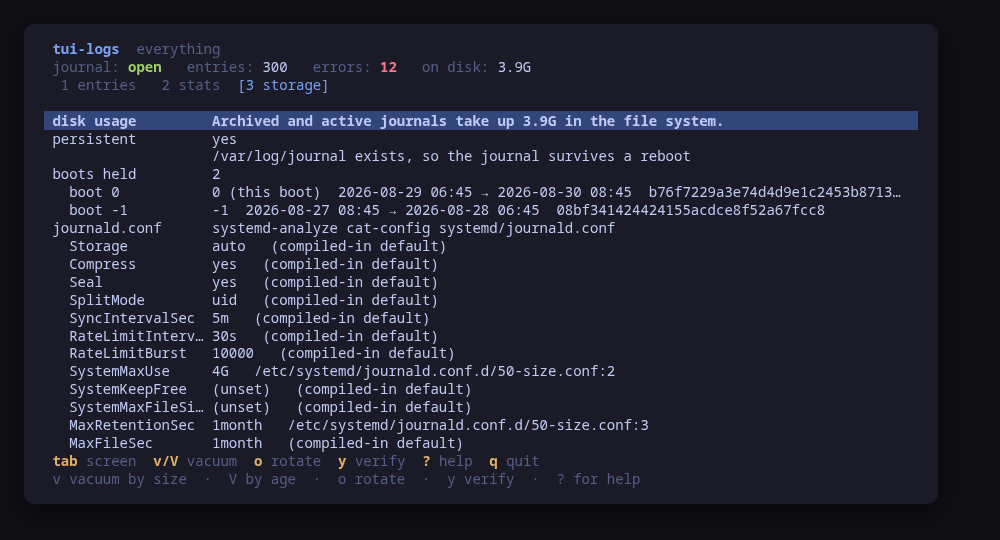
What the journal costs (3)
Screen 3 is the journal as files on a disk. The top of it answers the
question that started this:
disk usage         Archived and active journals take up 104.0M in the file system.
persistent         yes
                 /var/log/journal exists, so the journal survives a reboot
boots held         1
boot 0           0 (this boot)  2026-10-23 17:49 → 2026-10-23 17:54  e8fd9b1bd0de4dd09356097c8b721b81
journald.conf      systemd-analyze cat-config systemd/journald.conf
Storage          auto   (compiled-in default)
Compress         yes   (compiled-in default)
SystemMaxUse     (unset)   (compiled-in default)
SystemKeepFree   (unset)   (compiled-in default)
SystemMaxFileSi… (unset)   (compiled-in default)
SystemMaxFiles   100   (compiled-in default)
MaxRetentionSec  (unset)   (compiled-in default)
MaxFileSec       1month   (compiled-in default)
ForwardToSyslog  yes   /usr/lib/systemd/journald.conf.d/syslog.conf:5
The list below journald.conf is longer on screen; these are the lines that
matter here. Each setting carries the file and line it came from, or
(compiled-in default). SystemMaxUse unset means journald’s own default:
10% of the filesystem, capped at 4 GB. Nothing on this machine had chosen a
limit.
What is filling it (2, u)
Screen 2 counts the window the tool read. With no filter that is the newest
500 entries, and the screen says so rather than passing them off as the whole
journal:
window             everything
entries            500
                 this is the read limit (500), so what follows counts the window, not the whole period
covering           Oct 23 17:54:45 → Oct 23 17:54:48
errors             0  (err and worse)
warnings           0
noisiest
inventory-sync.… 496  ███████████████
init.scope       4  █
by boot
0 (this boot)    500
read with          journalctl --no-pager -o json -n 500
The line to read is covering: 500 entries in three seconds, 496 of them
from one unit. On a quiet machine the newest 500 entries cover hours or days.
u lists the units that have written to the journal, and picking one adds
-u to the read:
Unit (4 with journal entries)

 (type a unit name)
> (every unit)
 init.scope
 inventory-sync.service
 systemd-journald.service
 systemd-logind.service
With inventory-sync.service picked, the command along the bottom of every
screen became journalctl --no-pager -o json -u inventory-sync.service -n 500. That line is the read itself, not a description of it, so it can be
pasted into a shell as it is.
Its errors are not errors to journald (/, enter)
The service prints ERROR lines, yet screen 2 counted errors 0. p with
err would not find them either: a service’s standard output and standard
error both reach the journal at priority info unless the program says
otherwise. Search finds them by text. / passes the pattern to journalctl as
--grep, so it searches the journal on disk, not the rows on screen:
tui-logs  journalctl  ·  inventory-sync.service  ·  matching "timed out"
journal: open   entries: 67   on disk: 104.0M   backend: journald 255
[1 entries]  2 stats   3 storage
TIME            PRI     SOURCE                                                         MESSAGE
Oct 23 17:50:19 info    inventory-sync.service                                         ERROR upstream https://api.example.com/v2/stock timed out after 30s, …
Oct 23 17:50:23 info    inventory-sync.service                                         ERROR upstream https://api.example.com/v2/stock timed out after 30s, …
Oct 23 17:50:28 info    inventory-sync.service                                         ERROR upstream https://api.example.com/v2/stock timed out after 30s, …
Unfiltered, the list is newest first. With a search on this systemd it came
back oldest first: the first row is from 17:50 and G jumps to the newest,
at 17:54:46.
enter on a row opens the whole record. The priority and the transport
explain the info:
Oct 23 17:50:19  info  inventory-sync.service
ERROR upstream https://api.example.com/v2/stock timed out after 30s, retrying
Fields
unit             inventory-sync.service
identifier       inventory-sync
priority         6
pid              366
executable       /usr/bin/bash
command line     /bin/bash /usr/local/bin/inventory-sync
transport        stdout
cgroup           /system.slice/inventory-sync.service
The window on screen came from
$ journalctl --no-pager -o json -u inventory-sync.service --grep 'timed out' -n 500
Keep the lines worth keeping (x)
A vacuum deletes whole files and has no undo, so anything worth keeping
leaves the journal first. x exports the window on screen, here the 67
timeouts, to a file under your home directory. It proposes a name, reads the
journal into a private temporary file, and only then asks:
Write /home/ana/journal-20261023-175843.log

67 lines, 8.6K, from `journalctl --no-pager -o short-iso -u
inventory-sync.service --grep 'timed out' -n 500`.

2026-10-23T17:54:46+00:00 web01 inventory-sync[366]: ERROR upstream htt…
2026-10-23T17:54:42+00:00 web01 inventory-sync[366]: ERROR upstream htt…
2026-10-23T17:54:38+00:00 web01 inventory-sync[366]: ERROR upstream htt…
… 61 more lines

Command to run:
$ install -m 600 /tmp/tui-logs-561512219/journal-20261023-175843.log /home/ana/journal-20261023-175843.log
y wrote it, mode 600, owned by the user, with no sudo involved. The
README explains why the
destination has to be inside your home directory.
Set a limit (S)
A vacuum on its own shrinks the journal once and lets it grow straight back.
S sets the limit instead, in three prompts. Each opens on the value in force
today; an empty answer leaves that key out of the file.
SystemMaxUse

> empty leaves this key out

How much disk the journal may take: 500M, 2G, 4G. Empty leaves
the key out, and journald falls back to 10% of the filesystem.
The answers were 48M, then 30d for MaxRetentionSec, then persistent
from the Storage list (auto, persistent, volatile). The tool stages
the file and shows it as a diff against what is on disk:
Write /etc/systemd/journald.conf.d/50-tui-logs.conf

The journal's retention is set by this file, which belongs to tui-logs
and holds nothing else. Restarting systemd-journald is what applies it:
journald re-reads its configuration on SIGHUP, but the size and age
limits are enforced from the moment the journal files are opened, so a
reload alone would leave the old limits in force until something else
rotated them. The restart loses no entries — what arrives during it
waits in the kernel's buffer.

--- /etc/systemd/journald.conf.d/50-tui-logs.conf (does not exist yet)
+++ /etc/systemd/journald.conf.d/50-tui-logs.conf
@@ -0,0 +1,7 @@
+# Written by tui-logs. Every line was previewed and confirmed.
+# Delete this file and `systemctl restart systemd-journald` to undo it.
+
+[Journal]
+SystemMaxUse=48M
+MaxRetentionSec=30d
+Storage=persistent

Command to run:
$ /usr/bin/sudo -n install -D -m 644 /tmp/tui-logs-846524377/50-tui-logs.conf /etc/systemd/journald.conf.d/50-tui-logs.conf
$ /usr/bin/sudo -n systemctl restart systemd-journald
After y, screen 3 showed the three keys coming from the new file, and the
disk usage unchanged:
disk usage         Archived and active journals take up 104.0M in the file system.
Storage          persistent   /etc/systemd/journald.conf.d/50-tui-logs.conf:7
SystemMaxUse     48M   /etc/systemd/journald.conf.d/50-tui-logs.conf:5
MaxRetentionSec  30d   /etc/systemd/journald.conf.d/50-tui-logs.conf:6
Still 104 MB, because journald enforces SystemMaxUse by deleting archived
files, and there were none: all of it sat in the one active file,
system.journal. A vacuum has the same rule, as the next step shows.
Vacuum (v)
v vacuums by size and V by age. Both offer a fixed list rather than a
text field, because a typo in a vacuum argument can empty a machine’s journal.
The sizes are 4G, 2G, 1G, 500M and 200M; the ages run from 1year
down to 7d.
Vacuum the journal to 200M

Delete the oldest archived journal files until the journal is under
200M.

Whole journal files are removed, oldest first, so the result usually
lands under the limit rather than on it. What goes is gone: there is no
undo, and no other copy unless something forwards the journal elsewhere.

Command to run:
$ /usr/bin/sudo -n journalctl --vacuum-size=200M
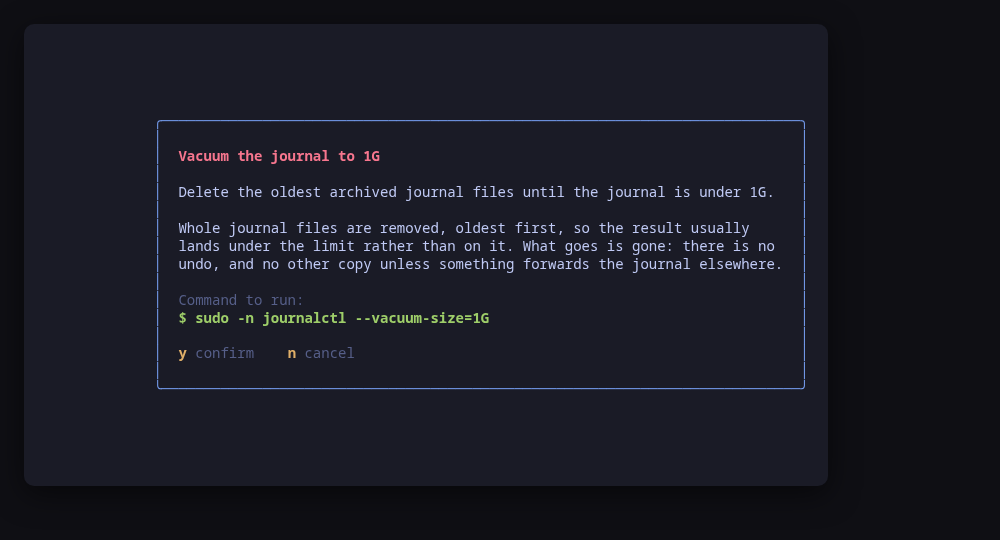
On this journal it removed nothing, for two reasons: 104 MB is already under the smallest size on offer, and a vacuum only ever deletes archived files. The status line said so:
Vacuum the journal to 200M: Vacuuming done, freed 0B of archived journals from /var/log/journal/f4ca690f8213421b8b07a4bfb69280cf.
On a journal measured in gigabytes, v with a size below the current usage
is the one-off cut. The limit from S is what keeps it there afterwards.
Rotate, and let the limit act (o)
o closes the active files and starts new ones, which turns the 100 MB
system.journal into an archived file:
Rotate the journal

Close the active journal files and start new ones; nothing is deleted.

Nothing is deleted. The active files become archived ones under a new
name, which is what a vacuum then has something to work with.

Command to run:
$ /usr/bin/sudo -n journalctl --rotate
The dialog says nothing is deleted, and journalctl --rotate itself deletes
nothing. But journald checks its limits after every rotation, and with
SystemMaxUse=48M in force it deleted the freshly archived file in the same
second. The header went from on disk: 104.0M to on disk: 15.5M, and
journald logged why:
Oct 23 18:00:47 web01 systemd-journald[136484]: System Journal (/var/log/journal/f4ca690f8213421b8b07a4bfb69280cf) is 104.0M, max 48.0M, 0B free.
Oct 23 18:00:47 web01 systemd-journald[136484]: Received client request to rotate journal, rotating.
Oct 23 18:00:47 web01 systemd-journald[136484]: Deleted archived journal /var/log/journal/f4ca690f8213421b8b07a4bfb69280cf/system@a68724aba6e94567b77e3a35383899f0-000000000000101e-00065e859aa095a0.jou
Oct 23 18:00:47 web01 systemd-journald[136484]: Vacuuming done, freed 88.7M of archived journals from /var/log/journal/f4ca690f8213421b8b07a4bfb69280cf.
So once a limit is set, o can delete. Export first, as above, whatever you
want to keep.
The whole file went, not only the noisy service’s lines: the header showed
entries: 31 afterwards, and the boot’s earlier entries from every other unit
were in that file too. Whole files are the only unit journald deletes.
Verify (y)
y runs journalctl --verify, a read that checks every file’s hashes. On a
large journal it takes minutes. Here it took a moment, and the status line
showed the first line of its output, for one of the three files:
Verify the journal: PASS: /var/log/journal/f4ca690f8213421b8b07a4bfb69280cf/user-1001.journal
Changing or removing the limit
S again opens on the values in the tool’s own file, so the next change
starts from 48M rather than from a blank prompt. The file’s header says how
to undo it, and that was run:
$ sudo rm /etc/systemd/journald.conf.d/50-tui-logs.conf
sudo systemctl restart systemd-journaldAfter R, screen 3 showed Storage auto, SystemMaxUse (unset) and
MaxRetentionSec (unset), all (compiled-in default) again. Files journald
already deleted stay deleted.
What this does not show
- Fixing the service. The lasting fix is to turn its debug logging down; the journal limit only bounds what it costs.
- The limit holding under load. The noisy service was not started again after the limit was set.
V, the vacuum by age: the youngest age it offers is7d, and every entry here was minutes old, so it would have removed nothing.- The
Runtime*keys, which limit a journal kept only in/run/log/journal.SoffersSystemMaxUse,MaxRetentionSecandStorage, and nothing else.