
Turn off SSH password login safely, with tui-ssh
Before passwords go, make sure somebody can still get in with a key. tui-ssh shows who has one, writes PasswordAuthentication, KbdInteractiveAuthentication and PermitRootLogin to a drop-in it checks with sshd first, warns when an earlier file would win, and reads the result back from sshd -T. The proof is a second machine that gets refused with a password and let in with a key.
Everything below was run on 2026-10-23 with
tui-ssh v0.2.4,
installed from the tui-tools apt repository, on an Ubuntu 24.04.5 container
running systemd and openssh-server 1:9.6p1-3ubuntu13.20 (OpenSSH 9.6). The
server is 198.51.100.10; a second container, 198.51.100.20, played the
laptop that logs in and the stranger that guesses passwords. The screens and
dialogs are copied from the terminal, without the dialog borders and with the
runs of spaces in wide tables shortened; nothing in them was retyped. The
screenshot is the tool’s own, from --demo.
The order matters more than the setting. Turning off passwords on a server where nobody has a working key is how people lock themselves out, so the key comes first and the switch comes second.
Install and open it
The one-time repository setup is on the install page. After it:
$ sudo apt update -qq && sudo apt install -y tui-sshtui-ssh --version printed tui-ssh 0.2.4.
The settings screen is only as good as sshd -T, which needs root. tui-ssh
asks for it through sudo -n, which never prompts. On this Ubuntu machine,
sudo -v && tui-ssh in the same terminal was not enough: the tool started with
config: from files in its header, and the service screen said:
config read sudo needs a password: run `sudo -v` in another terminal, then retry
Starting it with sudo gave the server’s own answer, and the header said
config: effective:
$ sudo tui-sshThe starting point
On machines that cloud-init provisions with password login on, a file named
/etc/ssh/sshd_config.d/50-cloud-init.conf sets PasswordAuthentication yes.
To see what tui-ssh does about a file like that, one was created here by hand,
as root:
$ echo "PasswordAuthentication yes" > /etc/ssh/sshd_config.d/50-cloud-init.confScreen 1 puts the settings that decide who gets in first, each with a verdict
and the file and line that set it:
service: ssh running   config: effective   findings: 6   sessions: 0   backend: openssh 9.6
SETTING                                 VALUE                 SET AT
PermitRootLogin                         without-password ok   (default)
PasswordAuthentication                  yes              !!   /etc/ssh/sshd_config.d/50-cloud-init.conf:1
PubkeyAuthentication                    yes              ok   (default)
KbdInteractiveAuthentication            no               ok   /etc/ssh/sshd_config:71
PermitEmptyPasswords                    no               ok   (default)
without-password is the older spelling of prohibit-password, and it is
what this sshd prints for the default: root by key only.
Check who has a key (6)
Screen 6 lists root and every account with a real shell, one row per key in
its ~/.ssh/authorized_keys, and a row saying so when there is none:
USER       TYPE      FINGERPRINT              COMMENT
root       —         (no authorized key)      —
ana        —         (no authorized key)      —
deploy     —         (no authorized key)      —
ubuntu     —         (no authorized key)      —
Nobody. With passwords off, nobody would get in over SSH. The key for ana was
made on the laptop:
$ ssh-keygen -q -t ed25519 -C ana@laptop -N "" -f ~/.ssh/id_ed25519 && cat ~/.ssh/id_ed25519.pub && ssh-keygen -lf ~/.ssh/id_ed25519.pubssh-ed25519 AAAAC3NzaC1lZDI1NTE5AAAAIOxnHRWZJMWsvePdF8mObeI4oS2fr2A+2M91KEkD32rz ana@laptop 256 SHA256:opFX7OcKabidP8DGf66Mi5Hj2DX4tH7InnxEIJ7xYNQ ana@laptop (ED25519)
Add it (A)
A asks for the account, then for the .pub line. After enter the pasted
line is staged and read back by ssh-keygen before anything is written:
Add a public key to ana

✓ ssh-keygen reads the new key as 256 SHA256:opFX7OcKabidP8DGf66Mi5Hj2DX4tH7InnxEIJ7xYNQ ana@laptop (ED25519)

Whoever holds the private half of SHA256:opFX7OcKabidP8DGf66Mi5Hj2DX4tH7InnxEIJ7xYNQ can then log in as ana, from anywhere the firewall allows.

--- /dev/null
+++ /home/ana/.ssh/authorized_keys
@@ -1,0 +1,1 @@
+ssh-ed25519 AAAAC3NzaC1lZDI1NTE5AAAAIOxnHRWZJMWsvePdF8mObeI4oS2fr2A+2M91KEkD32rz ana@laptop

Command to run:
$ install -d -m 700 -o ana -g ana /home/ana/.ssh
$ install -m 600 -o ana -g ana /tmp/tui-ssh-2013124891/authorized_keys /home/ana/.ssh/authorized_keys
The fingerprint matches the one the laptop printed. After y, the row for
ana showed ED25519 SHA256:opFX7OcKabidP8DGf66Mi5Hj2DX4tH7InnxEIJ7xYNQ ana@laptop.
Test it from the laptop while passwords still work, not after:
$ ssh -o BatchMode=yes ana@198.51.100.10 'id; echo $SSH_CONNECTION'uid=1001(ana) gid=1001(ana) groups=1001(ana),27(sudo) 198.51.100.20 59324 198.51.100.10 22
deploy still has no key. On a real server, that row is the moment to add one
or to accept that the account stops logging in over SSH.
Turn off passwords (e), and the Include-order warning
On screen 1, PasswordAuthentication selected, e opens the editor with the
current value and where it came from. tab to the value, → to no, then
enter. The staged file is checked by sshd before the question is asked, and
this time the dialog has something to say about it:
Set PasswordAuthentication to no

✓ accepted by sshd -t -f /tmp/tui-ssh-3216292431/90-tui-ssh.conf

PasswordAuthentication is already set at /etc/ssh/sshd_config.d/50-cloud-init.conf:1, which sshd reads before this drop-in — and it takes the FIRST
value it is given, so what is written here would be read and ignored. Change it there instead.

--- /dev/null
+++ /etc/ssh/sshd_config.d/90-tui-ssh.conf
@@ -1,0 +1,5 @@
+# Written by tui-ssh, and rewritten whole on every change.
+# sshd takes the FIRST value it is given for a keyword, so a keyword set
+# above this file's Include in /etc/ssh/sshd_config wins over what is here.
+
+PasswordAuthentication no

Command to run:
$ install -m 600 /tmp/tui-ssh-3216292431/90-tui-ssh.conf /etc/ssh/sshd_config.d/90-tui-ssh.conf
$ systemctl reload ssh
50-cloud-init.conf sorts before 90-tui-ssh.conf, so sshd reads it first.
The warning does not block the write. y was pressed anyway, to see what
happens, and enter on the row afterwards showed both files and which one
sshd uses:
PasswordAuthentication
value          yes
read from      `sshd -T`, which is the server's own answer
verdict        risk
every account with a password is something a stranger can guess at.
Written at
wins  /etc/ssh/sshd_config.d/50-cloud-init.conf:1   PasswordAuthentication yes
      /etc/ssh/sshd_config.d/90-tui-ssh.conf:5   PasswordAuthentication no
A tool that showed the files instead of sshd -T would have looked done here.
The fix goes where the warning said, in a second terminal:
$ sudo rm /etc/ssh/sshd_config.d/50-cloud-init.confctrl+r re-read the server, and the row became no ok /etc/ssh/sshd_config.d/90-tui-ssh.conf:5. That is what sshd will do on its
next reload, not what the running daemon is doing: sshd -T reads the files.
A guess from the laptop at that moment still got a password prompt:
$ sshpass -p guess123 ssh -o PubkeyAuthentication=no deploy@198.51.100.10 true; echo exit=$?Permission denied, please try again. exit=5
r reloads the service, with its own preview ($ systemctl reload ssh).
After y, the same command from the laptop:
deploy@198.51.100.10: Permission denied (publickey).
exit=255
Root and keyboard-interactive (e again)
PermitRootLogin goes the same way. space on the value opens the list of
what sshd accepts: no, prohibit-password, forced-commands-only, yes.
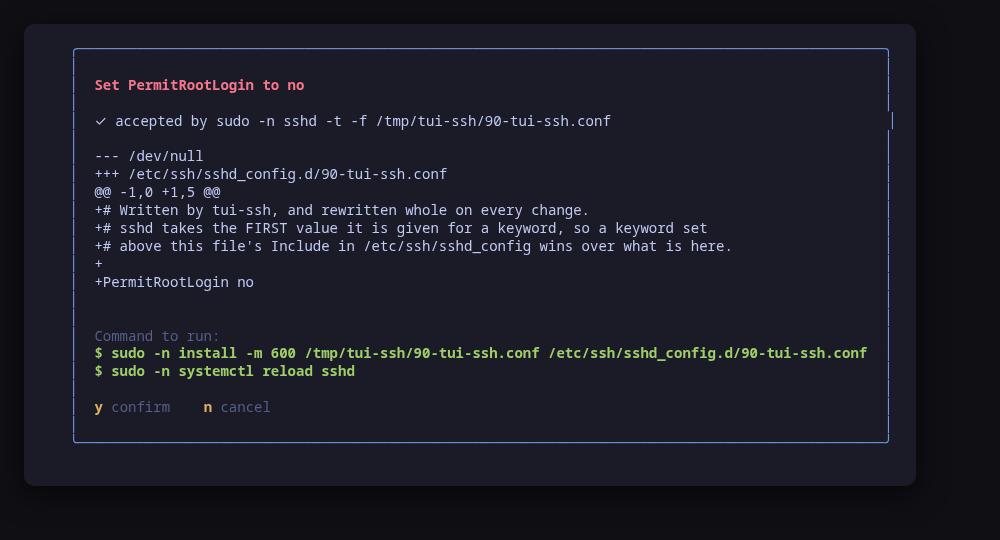
With no, the drop-in now exists, so the dialog is a diff against it:
Set PermitRootLogin to no

✓ accepted by sshd -t -f /tmp/tui-ssh-1105772857/90-tui-ssh.conf

--- /etc/ssh/sshd_config.d/90-tui-ssh.conf
+++ /etc/ssh/sshd_config.d/90-tui-ssh.conf
@@ -4,2 +4,3 @@

PasswordAuthentication no
+PermitRootLogin no

Command to run:
$ install -m 600 /tmp/tui-ssh-1105772857/90-tui-ssh.conf /etc/ssh/sshd_config.d/90-tui-ssh.conf
$ systemctl reload ssh
KbdInteractiveAuthentication was already no, from line 71 of Ubuntu’s
sshd_config. It was written to the drop-in as well, so the setting no longer
depends on a line in a file the package owns. Ubuntu’s Include sits at the
top of sshd_config, so the drop-in is read first and there was no warning;
enter on the row afterwards marked 90-tui-ssh.conf:7 with wins and
listed sshd_config:71 under it.
Check it from a shell
$ sudo cat /etc/ssh/sshd_config.d/90-tui-ssh.conf; sudo sshd -T | grep -Ei "^(passwordauthentication|permitrootlogin|kbdinteractiveauthentication) "# Written by tui-ssh, and rewritten whole on every change. # sshd takes the FIRST value it is given for a keyword, so a keyword set # above this file's Include in /etc/ssh/sshd_config wins over what is here. PasswordAuthentication no PermitRootLogin no KbdInteractiveAuthentication no permitrootlogin no passwordauthentication no kbdinteractiveauthentication no
Prove it from outside
From the laptop, with a terminal:
$ ssh -o PubkeyAuthentication=no deploy@198.51.100.10
  ssh -o PubkeyAuthentication=no ana@198.51.100.10
ssh ana@198.51.100.10 hostnamedeploy@198.51.100.10: Permission denied (publickey). ana@198.51.100.10: Permission denied (publickey). web1
No password prompt at all, even for ana, who has one. The server only offers
keys now:
$ ssh -v -o PubkeyAuthentication=no ana@198.51.100.10 2>&1 | grep "can continue"debug1: Authentications that can continue: publickey
A session opened from the laptop afterwards (ssh -tt ana@198.51.100.10 sleep 90) showed up on screen 2 with its address, its terminal and its
logind session, which t would end. Keep one like it open while you change
any of this.
Who is knocking (3)
Before the change, the laptop guessed passwords five times, three times for a real account and twice for accounts that do not exist:
$ for u in deploy deploy deploy admin oracle; do sshpass -p guess123 ssh -o PubkeyAuthentication=no $u@198.51.100.10 true; echo exit=$?; doneScreen 3 reads journalctl -u sshd -u ssh for the last 24 hours (w
switches to 7 days). The header counts the failures:
service: ssh running   config: effective   findings: 5   sessions: 0   failed 24h: 6   backend: openssh 9.6
WHAT          USER        FROM               METHOD
accepted      ana         198.51.100.20      publickey
accepted      ana         198.51.100.20      publickey
failed        deploy      198.51.100.20      password
failed        oracle      198.51.100.20      password
invalid-user  oracle      198.51.100.20      —
failed        admin       198.51.100.20      password
invalid-user  admin       198.51.100.20      —
failed        deploy      198.51.100.20      password
failed        deploy      198.51.100.20      password
failed        deploy      198.51.100.20      password
accepted      ana         198.51.100.20      publickey
The sixth failure is the guess made between removing the cloud-init file and
the reload. The refusals after the reload are not on the list: sshd logged them
as Connection closed by authenticating user deploy 198.51.100.20 port 44850 [preauth], not as failed passwords, because no password was ever tried.
enter on a row shows the line as it was logged:
The line as it was logged
2026-10-23T17:49:28+00:00 web1 sshd[992]: Failed password for invalid user oracle from 198.51.100.20 port 57022 ssh2
Read from
journalctl -u sshd -u ssh --since -24h
press b to block 198.51.100.20 at the firewall
b blocks an address only through ufw, and only when ufw is running. Here
it is not, and b said so on the status line:
no ufw on this machine to block 198.51.100.20 with — tui-firewall drives the one you do have
Undo
tui-ssh owns one file. To go back to how the machine was before (without the stand-in cloud-init file):
$ sudo rm /etc/ssh/sshd_config.d/90-tui-ssh.conf
  sudo systemctl reload ssh
sudo sshd -T | grep -Ei "^(passwordauthentication|permitrootlogin) "permitrootlogin without-password passwordauthentication yes
The key added with A stays; x on screen 6 removes it, by fingerprint.
In v0.2.4, the version this page was written with, that key was R; from
1.0.0 R only re-reads, as in every other tool of the family.
What this does not show
Matchblocks (m), for keeping passwords on for one account or address.- Host keys (
4) and the service screen (5). - Blocking an address: there was no
ufwon this machine. See tui-firewall for the firewall itself. - A real cloud-init machine. The
50-cloud-init.confhere was written by hand to stand for one; what tui-ssh read and warned about is the same either way, because it reads the include order from the machine.
More on every screen is on the tui-ssh page and in the README.