
Managing a server's ufw firewall over SSH with tui-firewall
Turning on a firewall over the SSH session it is about to filter is how people lock themselves out of a server. One walk through tui-firewall on Ubuntu's ufw, from a second machine, with SSH allowed first, web ports opened, a port kept to one network, a rule deleted, and every result checked from outside.
Everything below was run on 2026-10-23 with
tui-firewall v1.0.1,
installed from the apt repository on an Ubuntu 24.04 container (Ubuntu
24.04.5 LTS, ufw 0.36.2, systemd as PID 1) and driven over SSH from a second
container. The screens and dialogs are copied from the terminal, without the
dialog borders and with empty rows cut; nothing in them was retyped. The
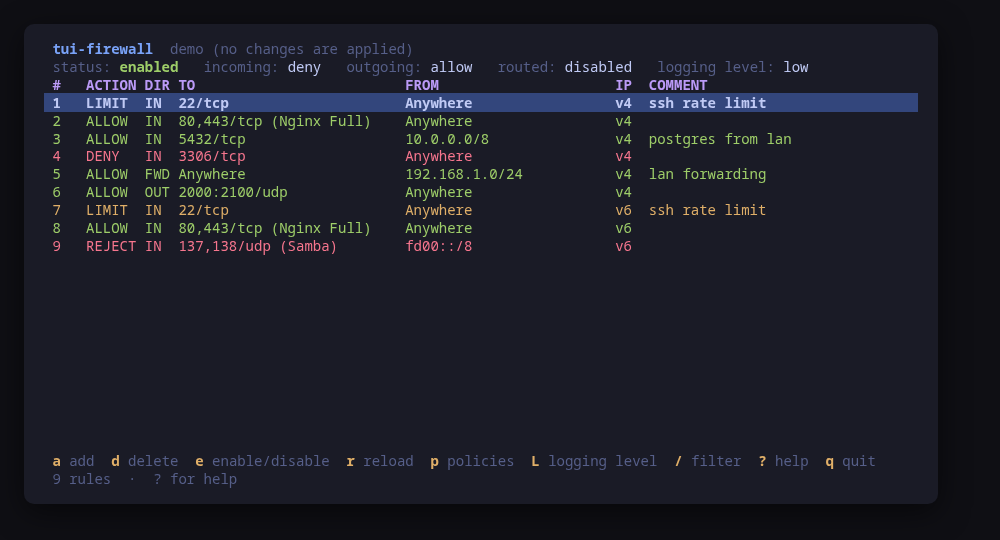
screenshot is the tool’s own, from --demo.
This page is about ufw, the firewall Ubuntu ships. A cloud image whose firewall is a bare iptables ruleset ending in a REJECT is a different problem, covered in Opening ports on a cloud image’s iptables firewall.
The two machines
The server, web1, has two addresses, 192.0.2.10 and 203.0.113.10, one on
each of two networks. It runs sshd on port 22 and a small web server answering
hello from web1 on ports 80, 443, 9100 and 8080, so that every port on this
page has something listening behind it. ufw is installed and off, as on a fresh
Ubuntu server.
The client sits on both networks too, as 192.0.2.20 and 203.0.113.20, so
the same curl can reach the server from inside the network that is trusted
and from one that is not. web1 is a Host entry in the client’s
~/.ssh/config for admin@192.0.2.10, with key authentication. Before
anything was changed, all five ports answered from the client.
Install it on the server and open it over SSH
$ sudo apt install tui-firewallThe repository setup is on the install page. ufw needs root even to read its rules, so start the tool with sudo, from the client:
$ ssh -t web1 sudo tui-firewall-t gives the remote side a terminal, which the TUI needs. Run as an ordinary
user instead, tui-firewall escalates each change
through sudo -n, which never prompts, so it then needs a warm sudo -v
first.
What a fresh ufw looks like
 tui-firewall  ufw (root)
status: disabled   incoming: unknown   outgoing: unknown   routed: unknown   logging level: unknown   backend: ufw 0.36.2

                                                             no rules yet — press a to add one

a add  d delete  e enable/disable  r reload  p policies  L logging level  / filter  ? help  q quit
0 rules  ·  ? for help
The policies read unknown because an inactive ufw does not report them:
ufw status verbose prints Status: inactive and nothing else, and that is
what the tool reads. The same goes for rules. A rule added while ufw is off is
saved, but neither ufw’s status nor this list shows it until the firewall is
on. The next step shows that.
Allow SSH first (a)
Once ufw is on, it denies incoming connections that no rule allows (the
header reads incoming: deny after e), so the rule that lets you back in
has to exist first. a opens the form:
Add rule

> Action       ‹ ALLOW ›
Direction      (none)
App profile    (none)
Port(s)      22, 80,443 or 2000:2100
Protocol       (none)
From         any, 10.0.0.0/8, fd00::/8
To           any, 192.168.1.10
Comment      why this rule exists
Routed         no
Insert at    empty appends to the end

tab next    ←/→ change    enter pick/submit    esc cancel
tab moves between fields; enter on a choice field opens a picker. On
Ubuntu the App profile picker offers OpenSSH, the profile that comes with
openssh-server. With it and a comment, enter on the comment field shows the
preview:
Add rule

The firewall will be changed as follows.

Command to run:
$ ufw allow OpenSSH comment 'admin ssh'

y confirm    n cancel
After y the status line said Add rule: Rules updated, and the list still
said no rules yet, for the reason above. ufw itself confirms the rule is
there, waiting:
Added user rules (see 'ufw status' for running firewall):
ufw allow OpenSSH comment 'admin ssh'
Turn the firewall on (e)
Enable the firewall

The firewall will start filtering traffic with the rules below.
Make sure a rule allows your SSH session before confirming.

Command to run:
$ ufw --force enable
Read that second line as what it is: a reminder. tui-firewall does not look for
an SSH rule before enabling, and it passes --force, which skips the yes/no
question ufw asks on the command line about SSH connections, because a TUI
cannot answer it. The confirm dialog takes that question’s place; checking
the rule is your job, which is why it came first.
After y, the header and the list filled in:
 status: enabled   incoming: deny   outgoing: allow   routed: deny   logging level: low   backend: ufw 0.36.2
#   ACTION DIR TO                                            FROM                                        IP  COMMENT
1   ALLOW  IN  OpenSSH                                       Anywhere                                        admin ssh
2   ALLOW  IN  OpenSSH                                       Anywhere                                    v6  admin ssh

Enable the firewall: Firewall is active and enabled on system startup
One ufw allow became two rows, one per address family; the IP column marks
the IPv6 half. Before closing anything, a new login from the client, in a
second terminal: ssh -o ConnectTimeout=5 web1 hostname printed web1. The
other four ports no longer answered from the client, as the deny policy says
they should.
Open the web ports (a)
Ports 80,443, with tcp picked by → in the Protocol field, make one rule:
Add rule

The firewall will be changed as follows.

Command to run:
$ ufw allow 80,443/tcp comment web
A port for one network only (a)
The metrics port, 9100, should answer the admin network and nothing else. The
same form, with 192.0.2.0/24 in From. A source turns the command into ufw’s
long form, and the preview shows it:
Add rule

The firewall will be changed as follows.

Command to run:
$ ufw allow from 192.0.2.0/24 to any port 9100 proto tcp comment 'metrics, admin network'
An IPv4 source makes an IPv4-only rule, so this one has no v6 row:
 #   ACTION DIR TO                                            FROM                                        IP  COMMENT
1   ALLOW  IN  OpenSSH                                       Anywhere                                        admin ssh
2   ALLOW  IN  80,443/tcp                                    Anywhere                                        web
3   ALLOW  IN  9100/tcp                                      192.0.2.0/24                                    metrics, admin network
4   ALLOW  IN  OpenSSH                                       Anywhere                                    v6  admin ssh
5   ALLOW  IN  80,443/tcp                                    Anywhere                                    v6  web
Delete a rule (d), both halves
A temporary rule for a staging app, ufw allow 8080/tcp comment 'staging app, temporary', was added the same way, and from the client port 8080 answered.
Then it had to go. / with 8080 filters the list to it:
 tui-firewall  ufw (root)  ·  filter: 8080
#   ACTION DIR TO                                            FROM                                        IP  COMMENT
4   ALLOW  IN  8080/tcp                                      Anywhere                                        staging app, temporary
7   ALLOW  IN  8080/tcp                                      Anywhere                                    v6  staging app, temporary
Delete rule 4

Rule: ALLOW IN 8080/tcp from Anywhere # staging app, temporary

Command to run:
$ ufw --force delete 4
ufw deletes by number, and a number covers one row, so after y the IPv6 half
was still there, now as rule 6, because everything below rule 4 moved up one.
The tool reads the list again after every delete, so d on the remaining row
previewed Delete rule 6 and ufw --force delete 6, the current number.
Its Rule: line read the same as the first one; the filtered list, with its
v6 mark, is where you see which half is selected. A rule you mean to
remove is gone only when both rows are.
What your open session does not tell you
A session that stays up after a change proves less than it seems. To show it,
the IPv4 SSH rule was deleted from the session it protects (g, d,
Delete rule 1, ufw --force delete 1). The tool kept working, because ufw
lets established connections through. A new login did not:
ssh: connect to host 192.0.2.10 port 22: Connection timed out
That is a lock-out waiting for the session to end. The fix, from the session that was still open, used the last field of the form, Insert at, so the rule went back on top:
Insert rule at position 1

The firewall will be changed as follows.

Command to run:
$ ufw insert 1 allow OpenSSH comment 'admin ssh'
After y, the same ssh -o ConnectTimeout=5 web1 hostname printed web1
again. After any change near port 22, try a new login before you close the
session you made it from.
Check it from outside
From the client, whose addresses are 192.0.2.20 and 203.0.113.20. The
first two requests leave from 192.0.2.20, inside the allowed network; the
third goes to the server’s other address and leaves from 203.0.113.20,
outside it; the fourth is the port whose rule was deleted:
$ curl -sS -m 5 http://192.0.2.10/
hello from web1
$ curl -sS -m 5 http://192.0.2.10:9100/
hello from web1
$ curl -sS -m 5 http://203.0.113.10:9100/
curl: (28) Connection timed out after 5002 milliseconds
$ curl -sS -m 5 http://192.0.2.10:8080/
curl: (28) Connection timed out after 5002 milliseconds
The same server, the same port 9100, answered one network and not the other.
A timeout rather than Connection refused is what ufw’s deny does: it drops
the packet without an answer.
No save step on ufw
ufw writes every rule to its own files as it adds it, and enable also turns
it on at boot. After a restart of the server container, without anything else
done:
Status: active

   To                         Action      From
   --                         ------      ----
[ 1] OpenSSH                    ALLOW IN    Anywhere                   # admin ssh
[ 2] 80,443/tcp                 ALLOW IN    Anywhere                   # web
[ 3] 9100/tcp                   ALLOW IN    192.0.2.0/24               # metrics, admin network
[ 4] OpenSSH (v6)               ALLOW IN    Anywhere (v6)              # admin ssh
[ 5] 80,443/tcp (v6)            ALLOW IN    Anywhere (v6)              # web
On an iptables cloud image it is the other way round, and persisting is a step
of its own (W in the same tool), as the
iptables guide
shows.
For scripts
--check reads the firewall the same way and prints JSON, with no UI and no
change. On ufw it also carries what the tool knows about the version it found,
including the numbering behaviour seen above:
  "compat": {
  "backend": "ufw",
  "version": "0.36.2",
  "minimum": "0.36",
  "notes": [
    {
      "range": "0.36.x",
      "impact": "`status numbered` indexes IPv4 and IPv6 halves of one rule separately, so deleting by number renumbers the rest and the list is re-read after every delete"
    }
  ],
  "status": "tested"
},
"selection": "the ufw service is running on this machine",
The full list of fields is in the README.
What this does not show
- IPv6 from outside. The
v6rows were created, but only IPv4 was tested from the client. - A rollback timer. On ufw every change applies at once; the staged apply with
an automatic rollback (
s,S,k) exists on the nftables and iptables backends only. - The cloud provider’s own firewall (security list, security group), which sits in front of the server and is changed in the provider’s console, not here.
- Default policies (
p), logging (L) and routed rules. They are previewed the same way, and were not changed in this run.
Related guides
- Opening ports on a cloud image’s iptables firewall: the same tool on an image with no ufw, where a rule has to land before the catch-all REJECT and be saved for the next boot.
- Verify a release before you run it: checking the tui-firewall binary itself before you give it root.