
A company tailnet with Keycloak single sign-on
A local CA from tui-cert, Keycloak served over https with a certificate from it, and a Headscale control plane set up with tui-tailscale that admits only the members of one Keycloak group. Run end to end in the family lab and told through the screens it produced, including the login that was refused.
This is a case, told through the screens of a real run. On 2026-09-25 the path below ran end to end in the family lab, on two virtual machines, with tui-tailscale v1.0.1, tui-cert v0.3.1 and tui-firewall v0.5.0, against Headscale 0.29.3 from pkgs.tui.tools, Tailscale 1.102.4 and Keycloak 26.7.4. The control plane was Ubuntu 24.04; the laptop was Omarchy Server 4.0.1, an Arch-based system.
Every terminal image is a frame the tool drew during the run. The TUIs ran in a
120 by 34 tmux window, each frame was saved with tmux capture-pane -e, and
tui-kit v0.4.3’s
render-screenshots.py --from-ansi turned it into the image, the same renderer
the tools’ README screenshots come from. Dialog frames are cropped to the rows
of the dialog; nothing in them is edited. The browser images are screenshots
from the same run. Secrets appear as placeholders such as <ADMIN_PASSWORD>,
and none of them is in any frame.
What you end up with
A small company wants its own tailnet. People join from their laptops by signing in with their company account, only the members of one group get in, nothing depends on a public certificate authority, and nothing skips TLS verification.
| Piece | Where | What it is |
|---|---|---|
CA lab-ca |
control plane | a local certificate authority kept by tui-cert; every machine that takes part trusts it |
| Keycloak | https://sso.lab.internal:18443 |
the identity provider, realm company, with a certificate from lab-ca |
| Headscale | https://vpn.lab.internal:19443 |
the control plane, driven by tui-tailscale, with its own certificate from lab-ca |
Group vpn-users |
in Keycloak | the allow list: alice is a member, bob is not |
company.internal |
MagicDNS | the names nodes get, such as laptop.company.internal |
The control plane is also the first node and routes a subnet to everyone who accepts routes. At the end alice’s laptop is on the tailnet, and bob, who has a working Keycloak account, is turned away at the browser.
How the lab differs from a real network
- Both machines are QEMU guests behind separate user-mode NATs. They reach the
lab host as
10.0.2.2, and the host forwards ports 18443 and 19443 into the control plane over ssh. That is why those ports, and why the certificates carry10.0.2.2. sso.lab.internalandvpn.lab.internalare lines in/etc/hostson both guests. On a real network they are records in your internal DNS.- UDP does not cross an ssh forward, so the two nodes never connect directly
and their traffic goes through a DERP relay. With
41641/udpreachable, nodes connect directly and the relay is only a fallback. - The traffic reaches Headscale through a forward that ends on the guest’s loopback, so the host firewall is never in its path. The firewall rules below are the ones a real host needs.
- The person at the laptop is a headless Chromium driven by a short Playwright script that fills in Keycloak’s form. It uses the system trust store and never ignores a certificate error, so it verifies exactly what a person’s browser would.
Part one: the CA and Keycloak
1. Create the CA (tui-cert, 5, then N)
On the control plane, after the one-time repository setup,
sudo apt-get install -y tui-cert. Screen 5 lists local CAs and N creates
one: the name lab-ca, with the key and the ten-year validity left at their
defaults.
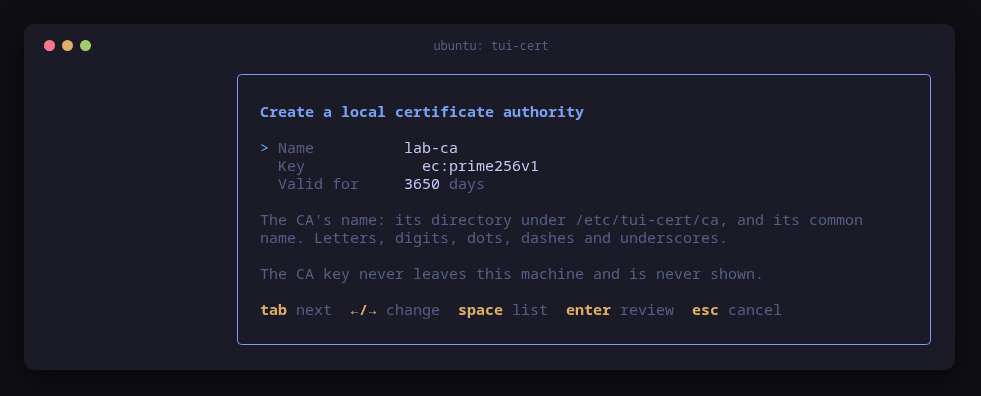
N on screen 5: the new CA form, named lab-ca, ECDSA P-256 for ten years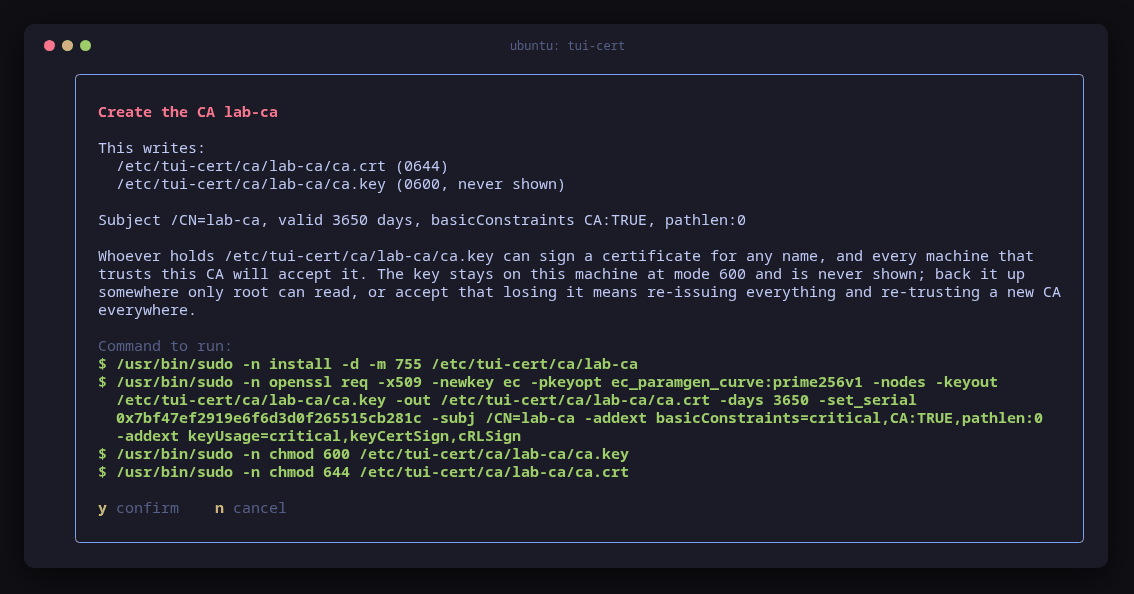
2. Issue Keycloak’s certificate (e)
e on lab-ca issues a server certificate for sso.lab.internal, with
10.0.2.2 as a second name. Keycloak runs in a rootful podman container as
uid 1000, which on this guest is the lab account, so lab:lab owns the pair
and the container can read its key.
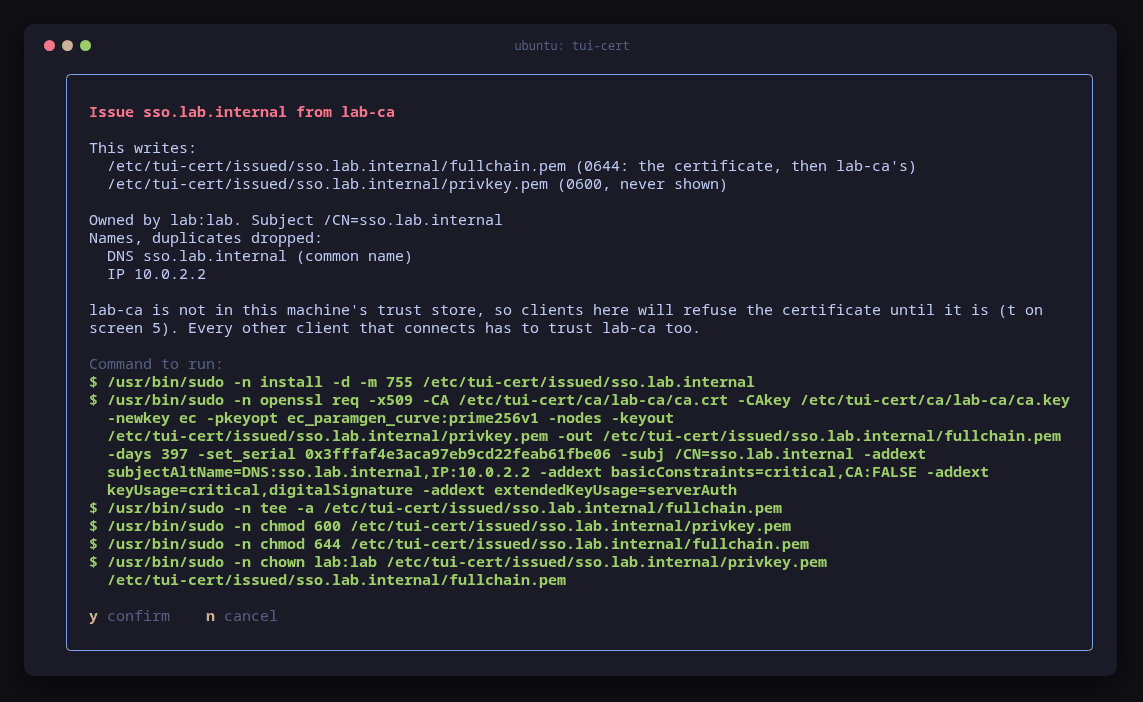
e, then Enter: sso.lab.internal and IP 10.0.2.2, owned by lab:lab, and the note that this machine does not trust lab-ca yet3. Trust the CA on the control plane (t)
Headscale will run here and fetch Keycloak’s discovery document over https, so
this machine trusts lab-ca too.
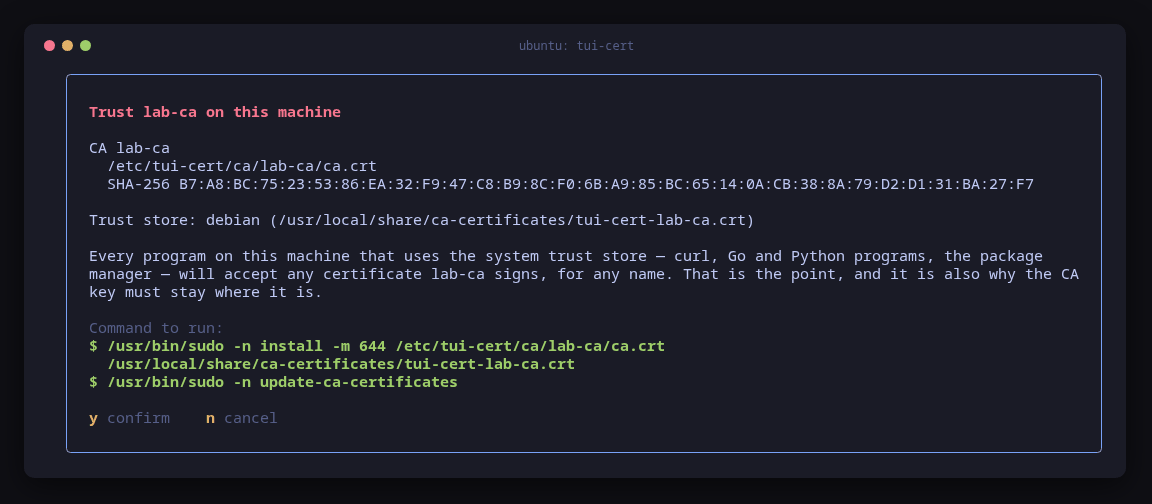
t on screen 5: trusting lab-ca through Debian’s trust store, and what that means for every program on the machine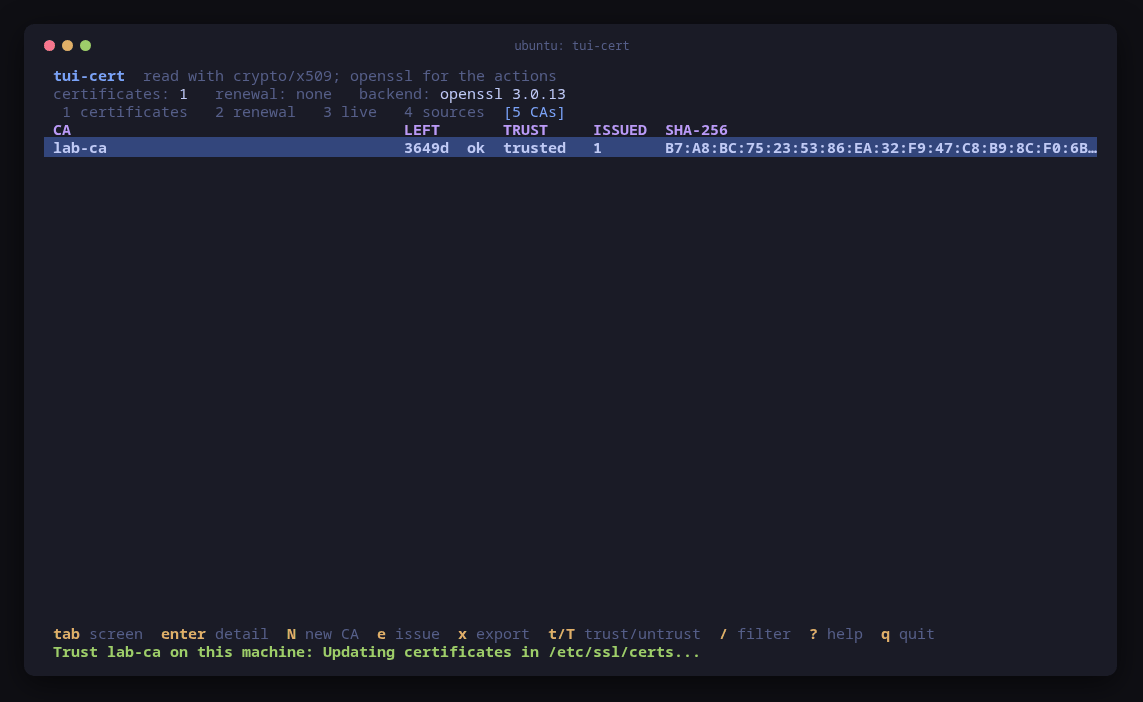
y: lab-ca trusted, one certificate issued. The status line still quotes the first line of update-ca-certificates (tui-cert#24)4. Run Keycloak as a quadlet
Keycloak is not a family tool: podman runs it and systemd runs podman through a
quadlet, /etc/containers/systemd/keycloak.container. The certificate pair is mounted read-only, http is off, and
--hostname is the full external URL, so the issuer is the same for the
browser, Headscale and curl. dev-file is Keycloak’s embedded database, fine
for a lab and not for production.
# Keycloak for the company tailnet case, run by podman through systemd (quadlet).
[Unit]
Description=Keycloak (realm company)
After=network-online.target
Wants=network-online.target

[Container]
ContainerName=keycloak
Image=quay.io/keycloak/keycloak:26.7.4
Exec=start --db=dev-file --hostname=https://sso.lab.internal:18443 --https-port=18443 --http-enabled=false --https-certificate-file=/etc/kc-tls/fullchain.pem --https-certificate-key-file=/etc/kc-tls/privkey.pem --health-enabled=true
PublishPort=18443:18443
Volume=/etc/tui-cert/issued/sso.lab.internal:/etc/kc-tls:ro
Volume=keycloak-data:/opt/keycloak/data
EnvironmentFile=/etc/keycloak/admin.env

[Service]
Restart=always
TimeoutStartSec=300

[Install]
WantedBy=multi-user.target default.target
$ sudo install -m 600 /dev/stdin /etc/keycloak/admin.env # KC_BOOTSTRAP_ADMIN_PASSWORD=<ADMIN_PASSWORD>
$ sudo install -m 644 /tmp/keycloak.container /etc/containers/systemd/keycloak.container
$ echo "10.0.2.2 sso.lab.internal vpn.lab.internal" | sudo tee -a /etc/hosts
$ sudo systemctl daemon-reload && sudo systemctl start keycloak5. The realm, the client and the group
The realm was built with Keycloak’s admin REST API and curl; the admin console
does the same with forms. Realm company, group vpn-users, user alice in
the group, user bob in none, and a confidential client headscale for the
authorization-code flow with the redirect URI
https://vpn.lab.internal:19443/oidc/callback. The client needs one protocol
mapper, because Keycloak puts group membership in a token only when a mapper
adds it, and Headscale can only check groups the token claims:
"protocolMappers": [{
  "name": "groups",
  "protocol": "openid-connect",
  "protocolMapper": "oidc-group-membership-mapper",
  "config": {
    "claim.name": "groups",
    "full.path": "false",
    "id.token.claim": "true",
    "access.token.claim": "true",
    "userinfo.token.claim": "true"
  }
}]
The client secret went from the API straight into
/etc/keycloak/headscale-client-secret, mode 600, and was never printed. The
ID tokens show the difference that decides everything later: alice’s carries
"groups": ["vpn-users"], and bob’s has no groups claim at all
("groups": null in the decoded payload).
6. The laptop trusts the CA (tui-cert on the laptop, t)
The laptop’s browser will meet both Keycloak and Headscale, so it trusts
lab-ca first. The CA certificate, never its key, was copied to the laptop and
its fingerprint compared with the one tui-cert shows on the control plane.
Before the trust, the laptop refuses Keycloak:
$ openssl x509 -noout -fingerprint -sha256 -in /etc/tui-cert/ca/lab-ca/ca.crt
sha256 Fingerprint=B7:A8:BC:75:23:53:86:EA:32:F9:47:C8:B9:8C:F0:6B:A9:85:BC:65:14:0A:CB:38:8A:79:D2:D1:31:BA:27:F7
$ curl -sS https://sso.lab.internal:18443/realms/company/.well-known/openid-configuration
curl: (60) SSL certificate OpenSSL verify result: self-signed certificate in certificate chain (19)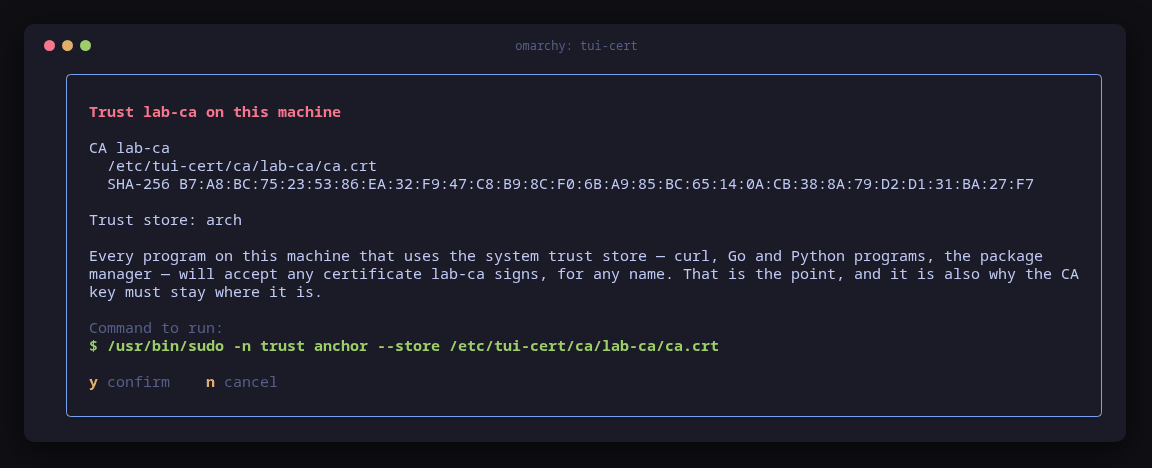
t on the laptop: the same fingerprint, trusted the Arch way with trust anchor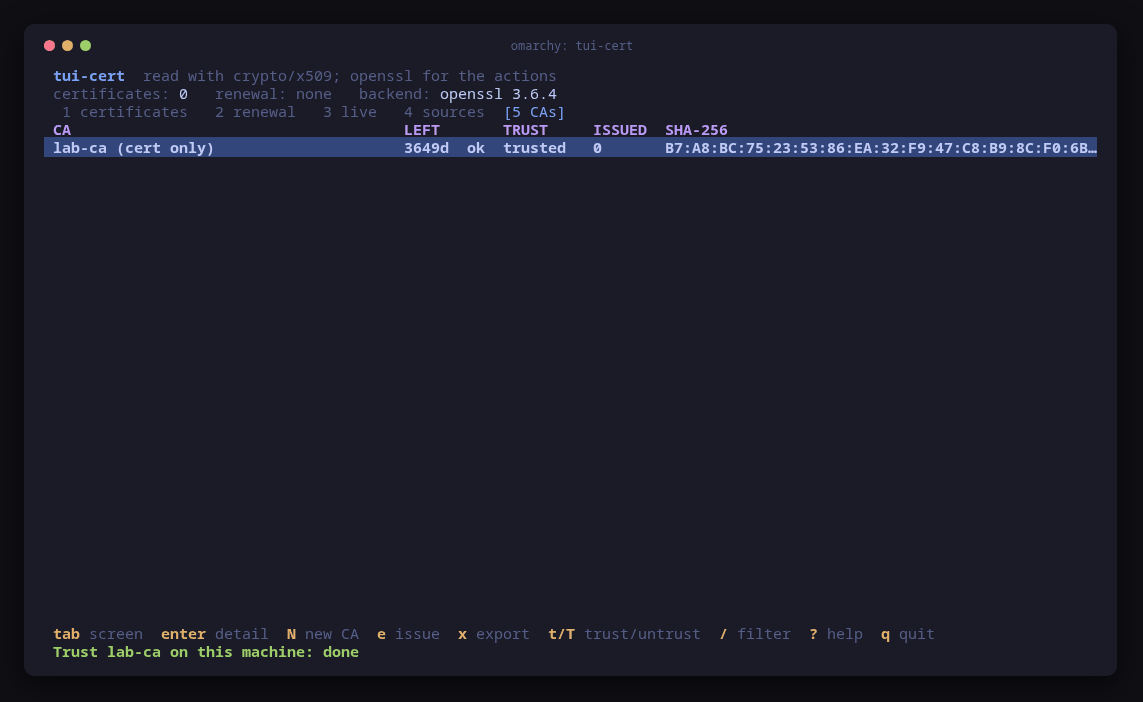
y: lab-ca listed as cert only (the key stays on the control plane) and trusted$ curl -sS https://sso.lab.internal:18443/realms/company/.well-known/openid-configuration | jq -r .issuer
https://sso.lab.internal:18443/realms/companyPart two: Headscale with Keycloak as the identity provider
7. Install headscale (tui-tailscale, 3, then i)
sudo apt-get install -y tui-tailscale on the control plane, then the users
screen, 3. With no headscale on the host, the readiness line names the
first step and the commands it will run. Since 1.0.1 apt runs with
DEBIAN_FRONTEND=noninteractive and NEEDRESTART_MODE=a, so the install no
longer hangs on needrestart (tui-tailscale#23, fixed); here it finished in 15 seconds.
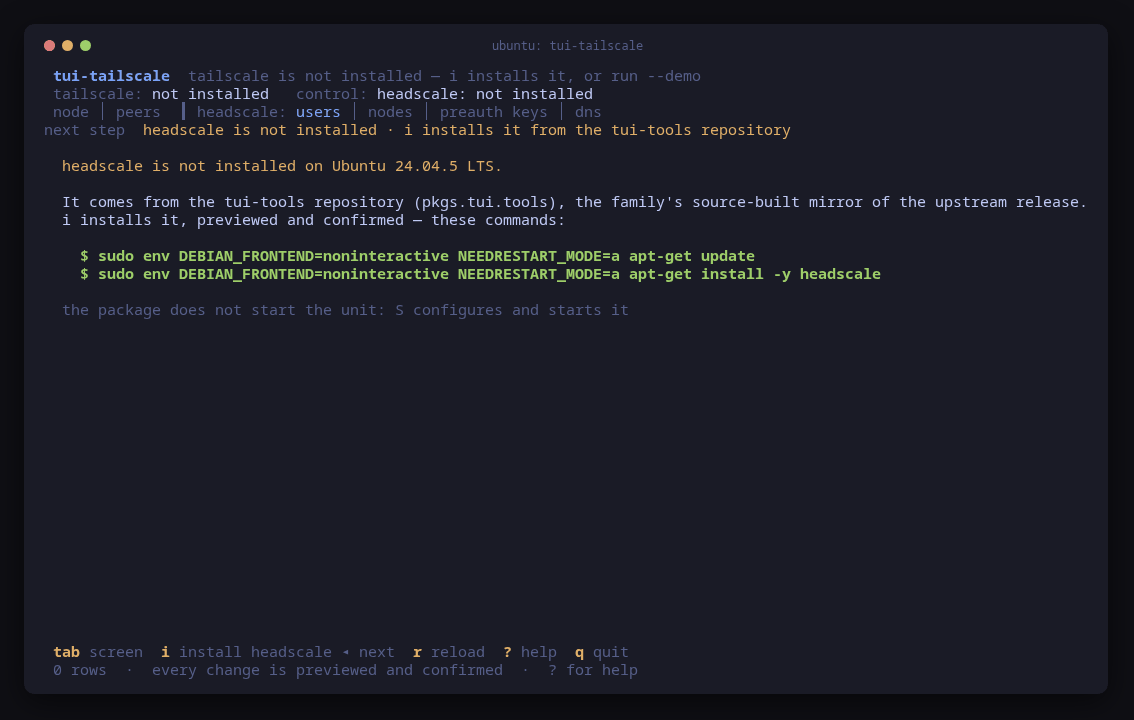
3: the users screen with no headscale, and the noninteractive apt commands i will run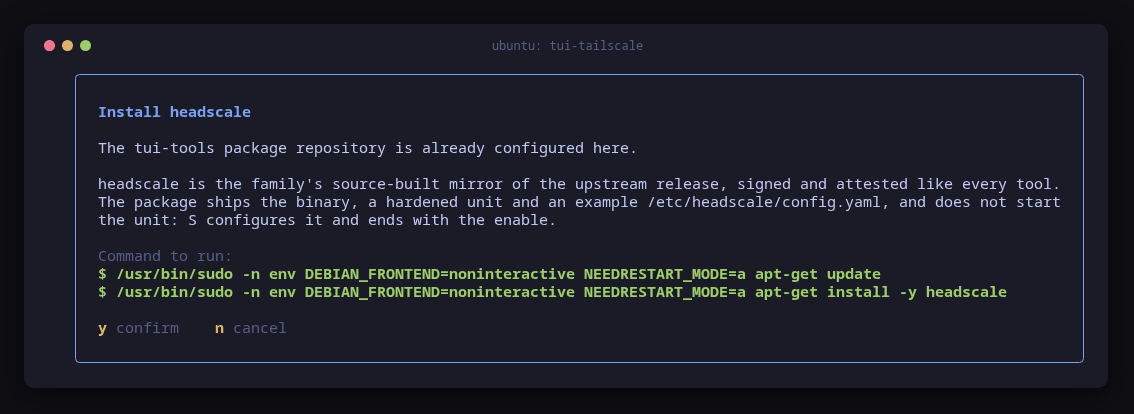
i: the install preview, from the tui-tools repository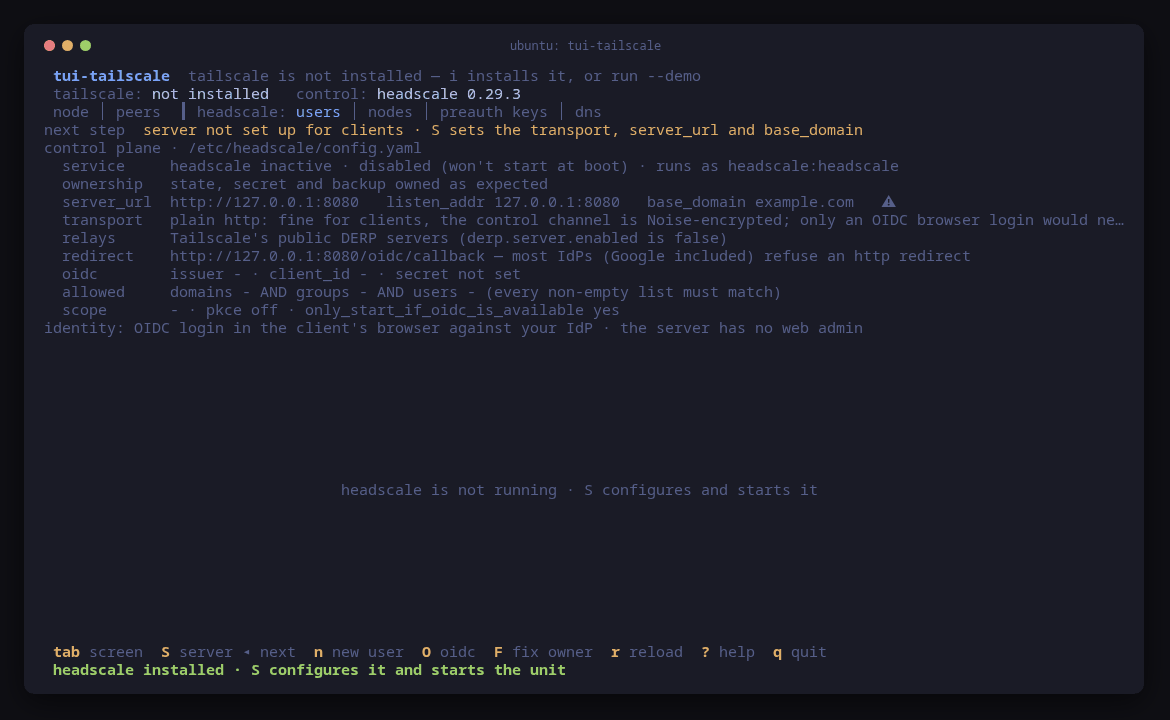
y: the control-plane panel, next step S. The relays line says this tailnet relays through Tailscale’s public DERP servers (tui-tailscale#27, fixed)8. Issue Headscale’s certificate (tui-cert, e)
Back in tui-cert, e on lab-ca again for vpn.lab.internal and
10.0.2.2, owned by headscale:headscale. The package created that account,
which is why headscale was installed first.
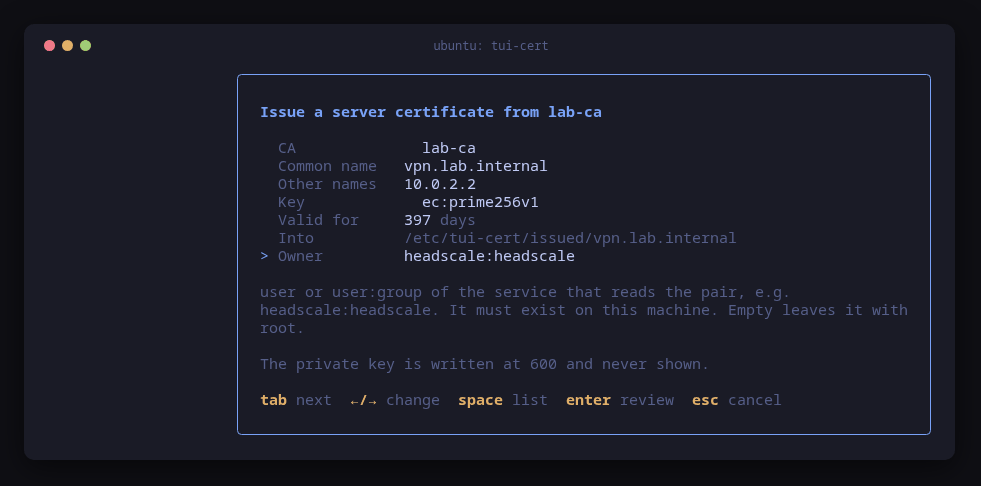
e: vpn.lab.internal with IP 10.0.2.2, owner headscale:headscale9. Serve it with its own certificate (S)
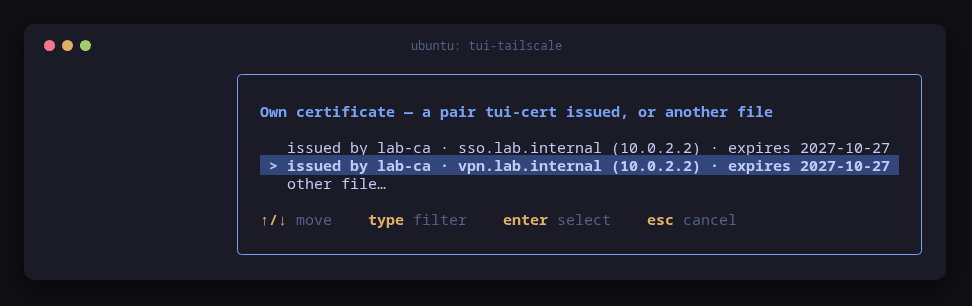
S asks for the transport first, then server_url, then offers the pairs
tui-cert issued on this machine instead of asking for paths.
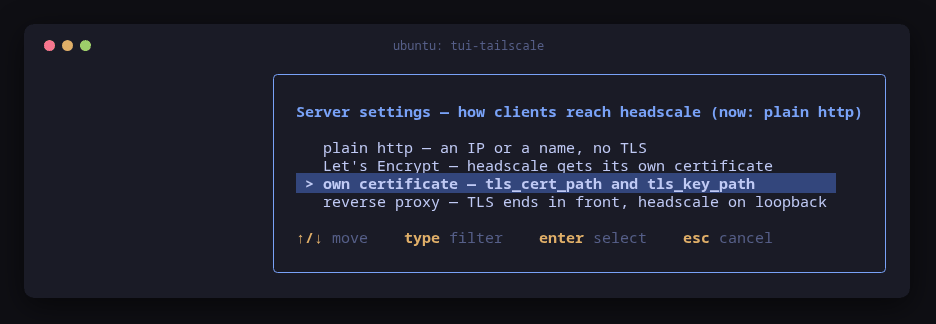
S: the transport, own certificate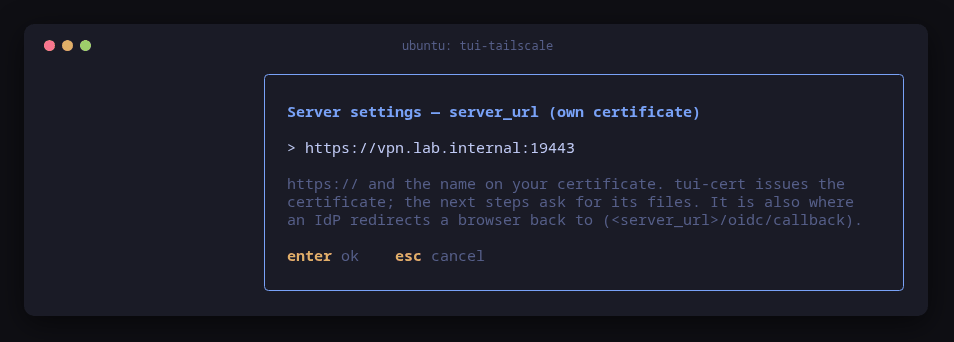
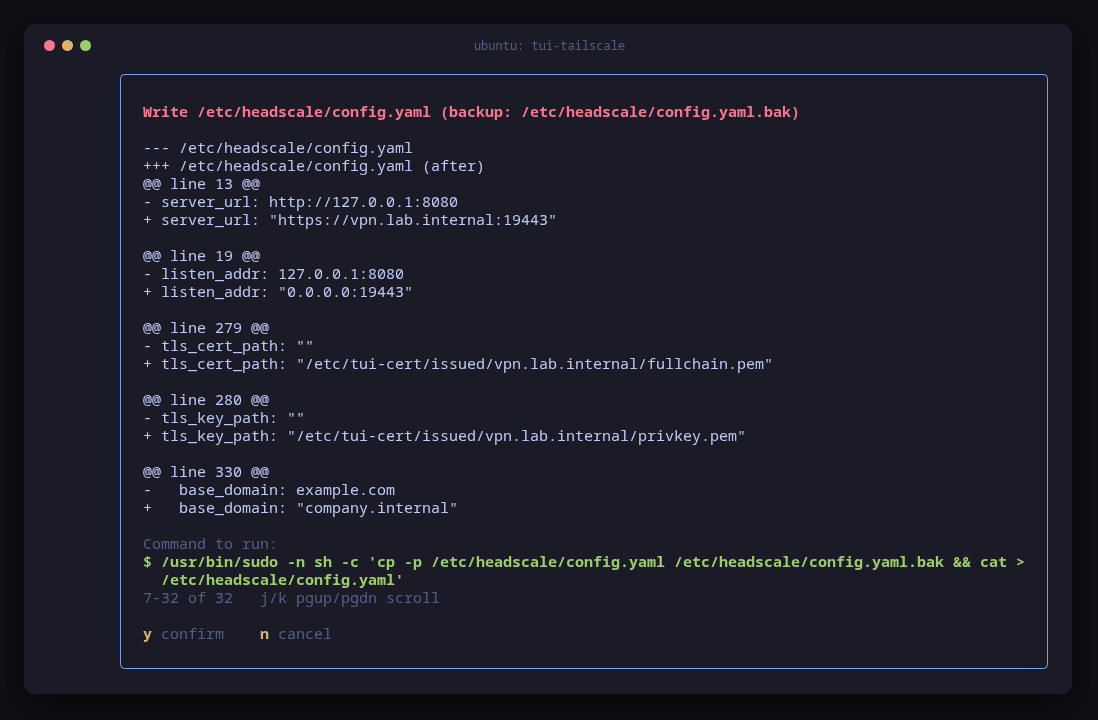
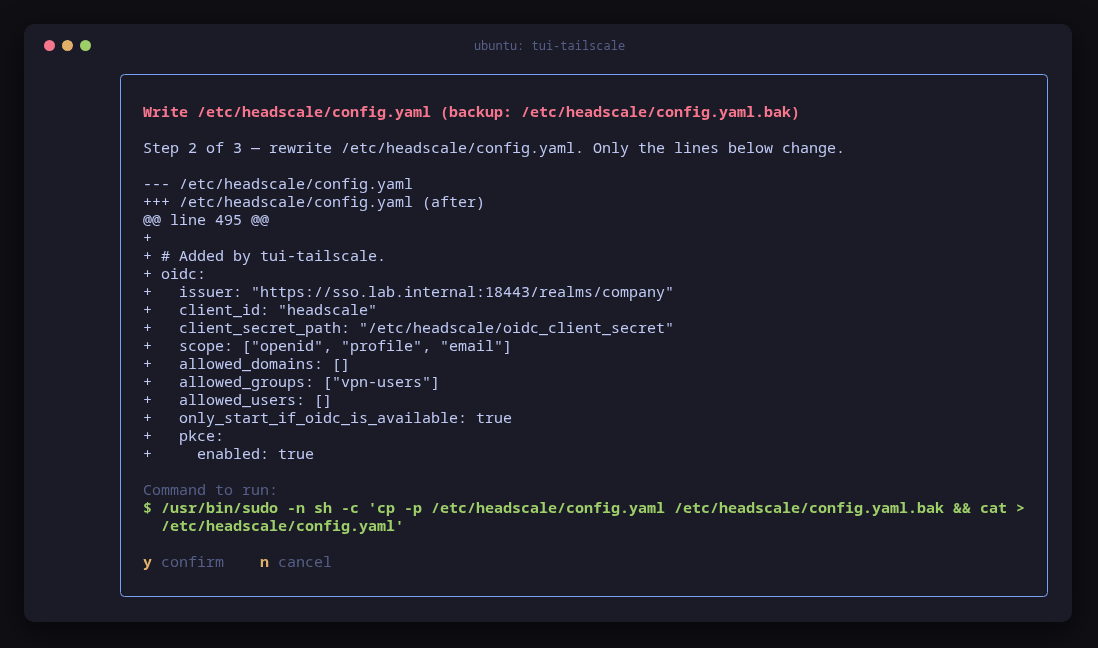
The diff shows only the lines that change. Since tui-kit v0.4.2 it keeps their
indentation (base_domain sits under dns:) and quotes the sh -c argument
(tui-kit#30 and
tui-kit#31, fixed).
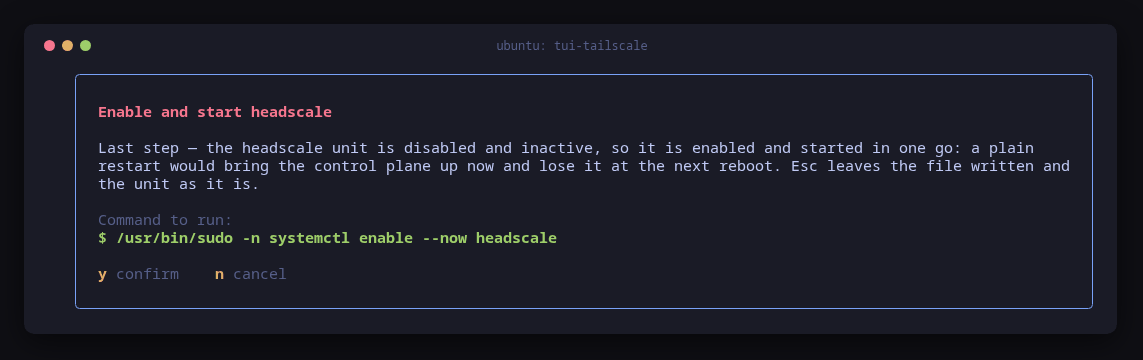
y: the unit was disabled, so the last step enables and starts it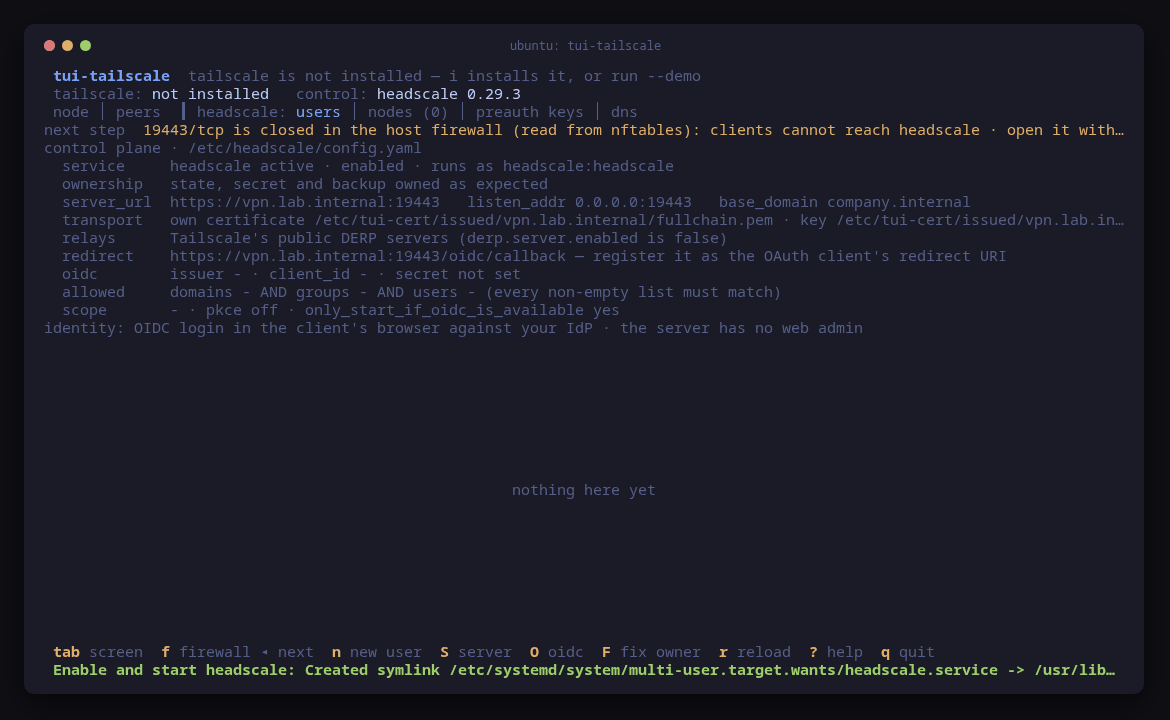
y: headscale runs with its own certificate. Next step: 19443/tcp closed (tui-firewall is not installed yet, so nftables is read directly)$ curl -sS https://vpn.lab.internal:19443/health
{"status":"pass"}
$ headscale version | head -1
headscale version v0.29.3+dirtycurl verifies the certificate against the system store. The +dirty comes
from the package and is still open against the packaging.
10. Keycloak as the identity provider (O)
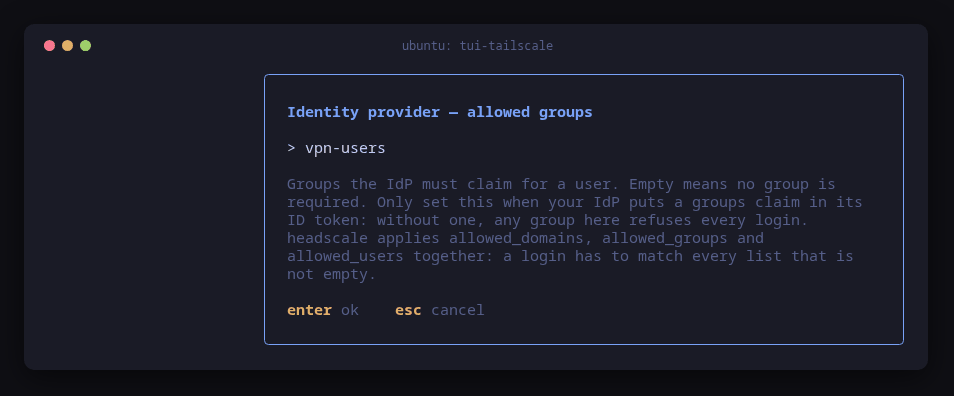
O starts with a provider picker. Generic OIDC takes any OpenID Connect
provider: the issuer https://sso.lab.internal:18443/realms/company, the
client ID, the secret, and the allow lists.
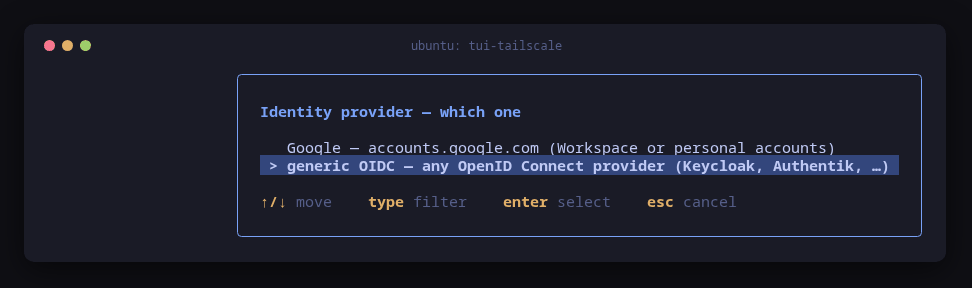
O: generic OIDC rather than the Google preset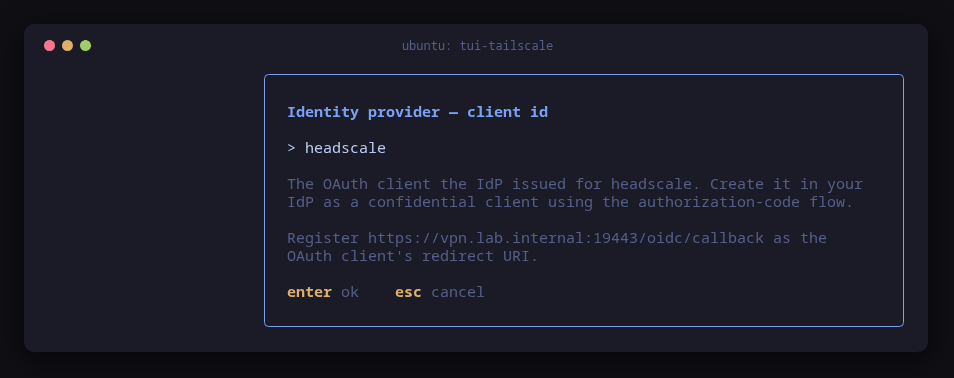
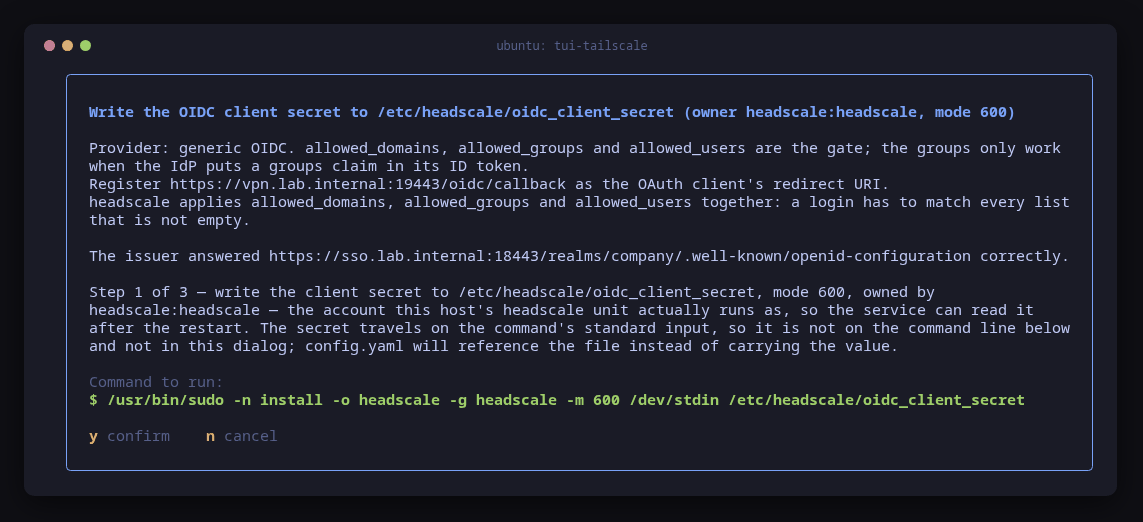
The secret was pasted from the root-only file through a tmux buffer, so it was never typed or echoed.
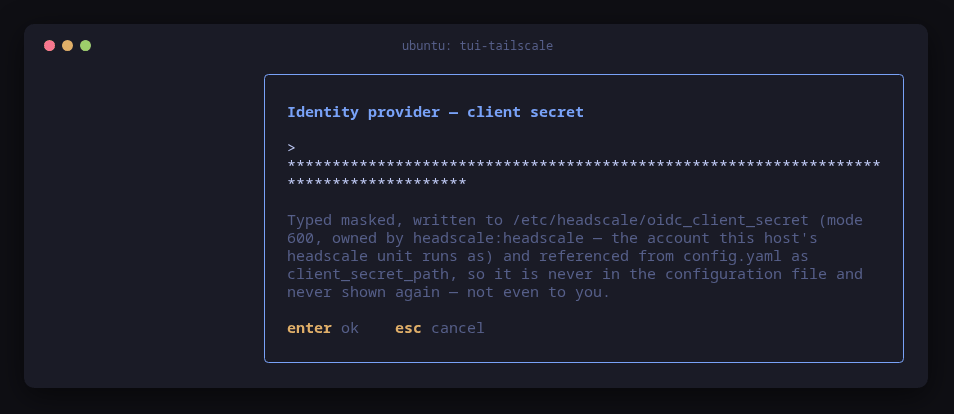
Before writing, the tool fetched the issuer’s discovery document from this machine, the one that will have to reach Keycloak.
11. Open the ports (f, into tui-firewall)
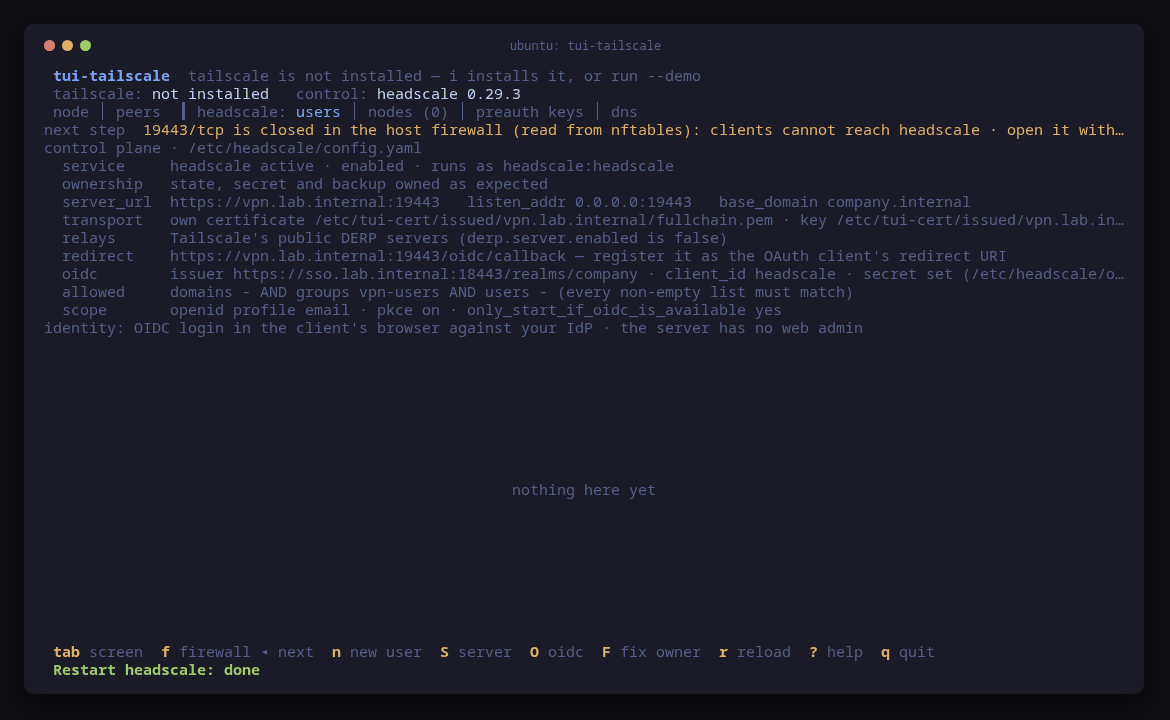
The readiness line said 19443/tcp was closed. f offers to install
tui-firewall when it is missing and hands over to it
right after (tui-tailscale#25, fixed).
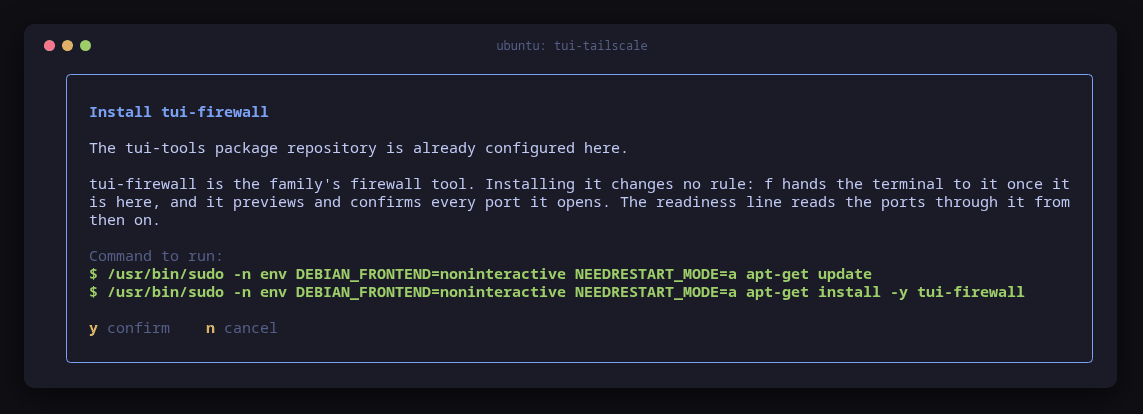
f without tui-firewall: installing it changes no ruleIn tui-firewall, a adds 19443/tcp for the control port that laptops,
browsers and nodes reach, and 41641/udp for direct connections between
nodes. The add preview for a rule with a comment is not shell-quoted yet
(tui-firewall#26, open).
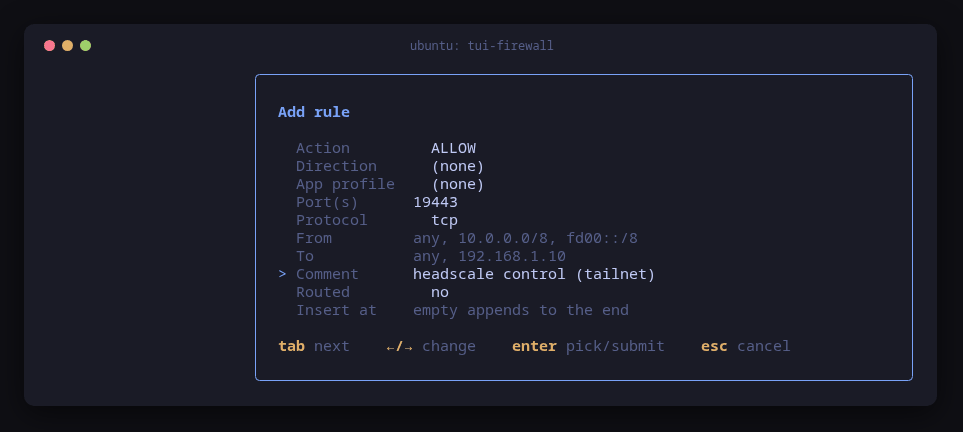
f, then a: allow 19443/tcp with a comment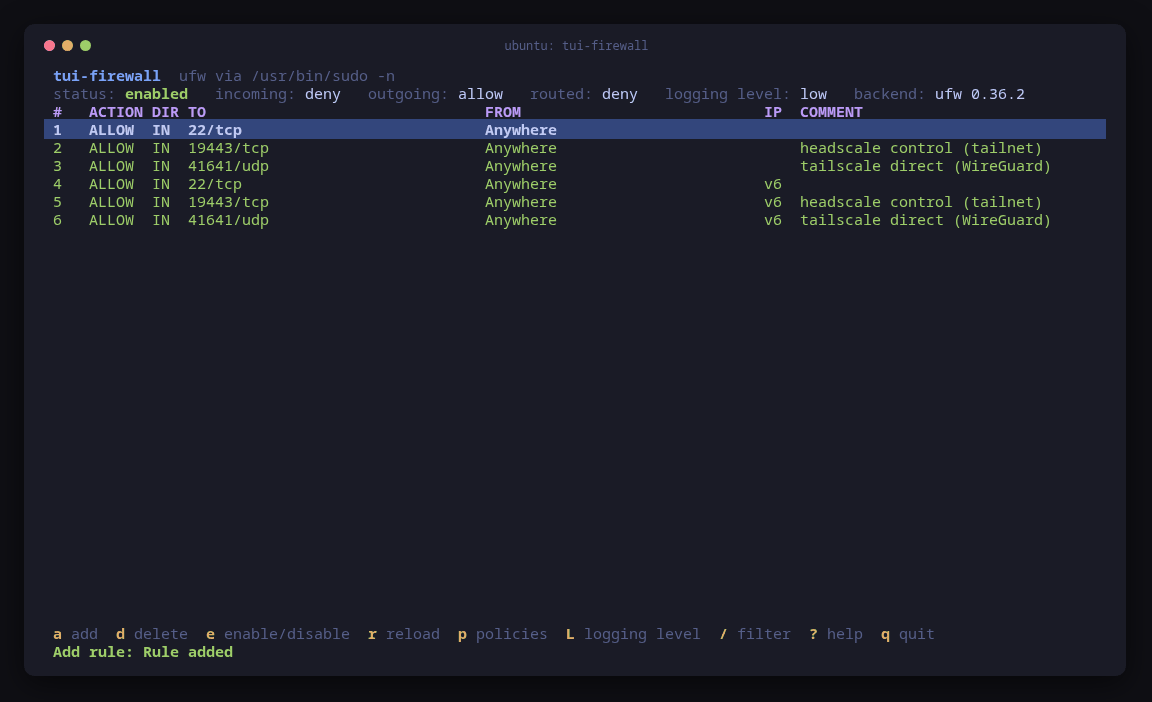
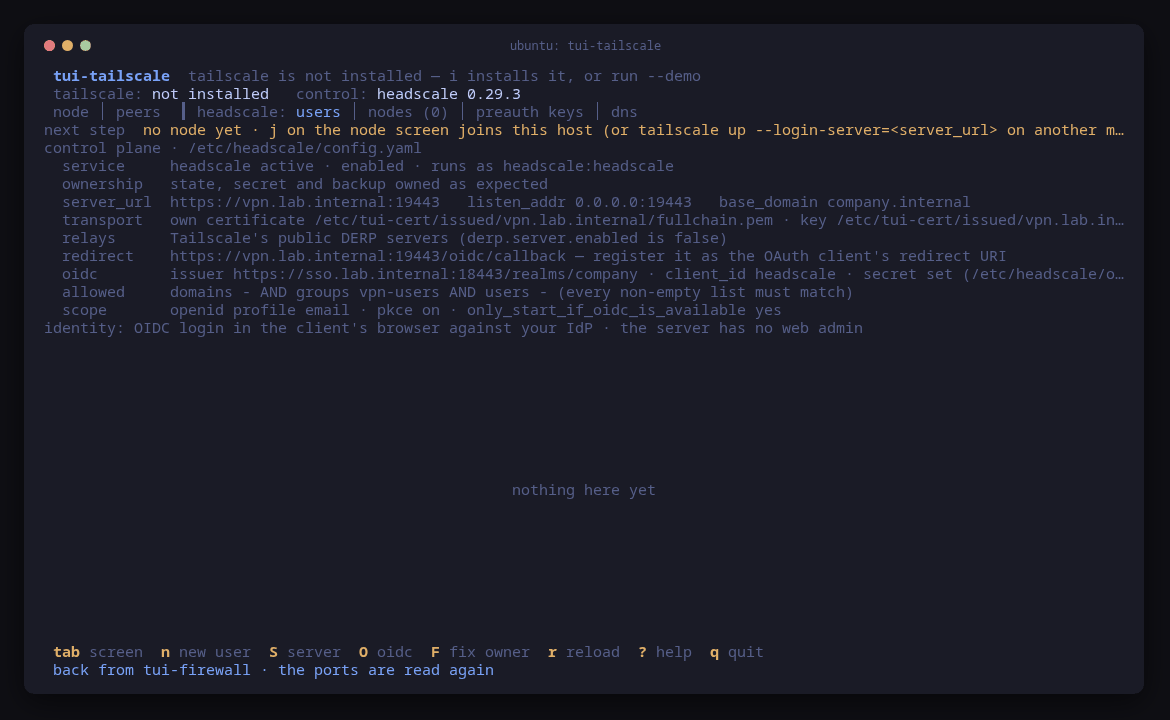
q: back in tui-tailscale, the ports read through tui-firewall are open and the next step is the first node (tui-tailscale#24, fixed)12. The control plane joins as a subnet router
The control plane joins with a pre-auth key: it is a server, and nobody signs
in to Keycloak as it. n on the users screen created user infra, and n on
the pre-auth keys screen a key for it that expires in an hour. The key is
shown once, on the status line; no frame with it was kept. On a 120-column
terminal it was cut at the edge
(tui-tailscale#30, open).
1, i installed Tailscale from its own apt repository, then j: the login
server this host serves, the key, hostname control, and 10.88.0.0/16 to
advertise. That is the podman bridge where Keycloak’s container lives; on a
real network it would be the office LAN.
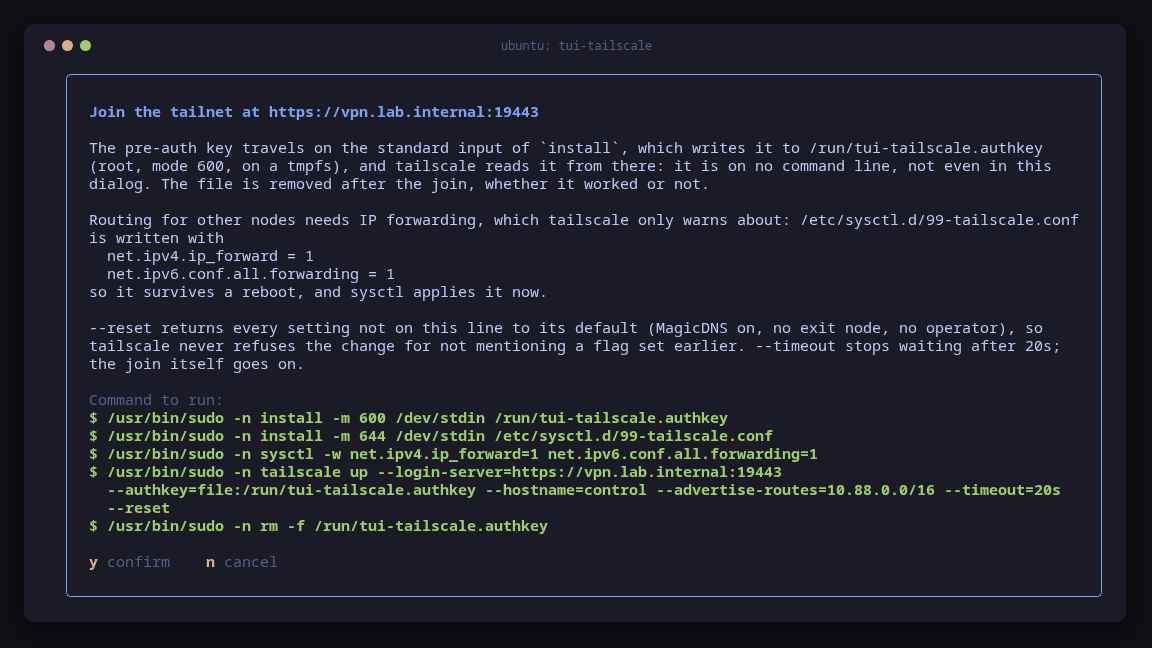
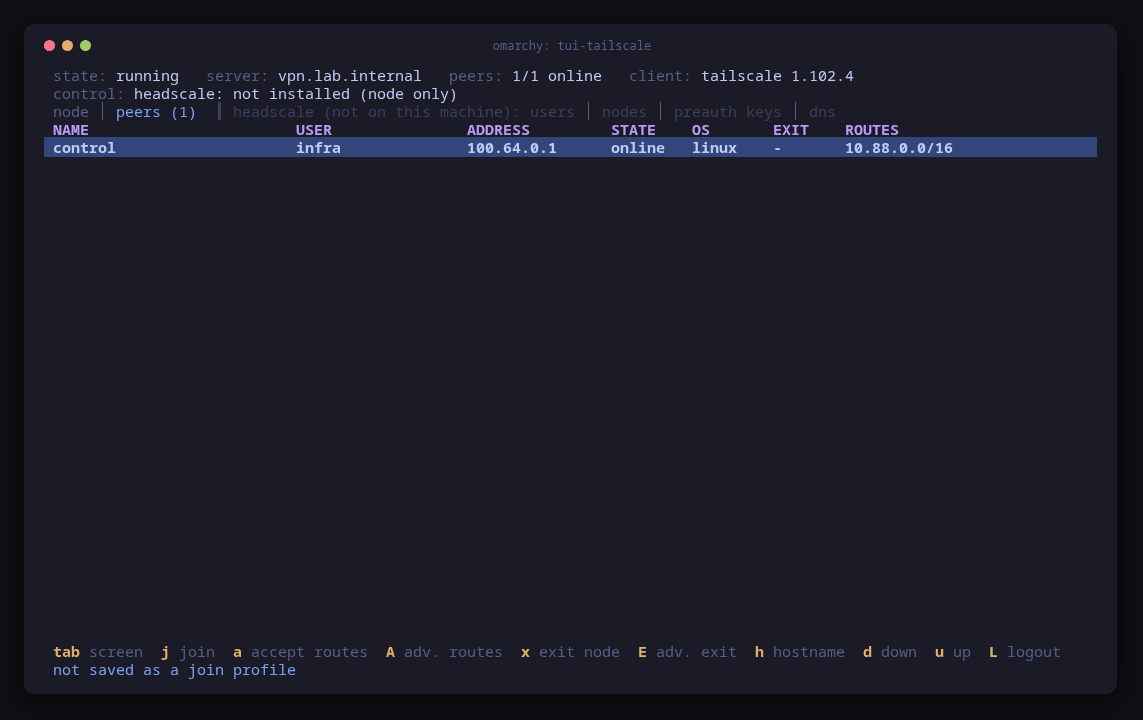
j: the key goes through a root-only file under /run, IP forwarding is made permanent, and 10.88.0.0/16 is advertised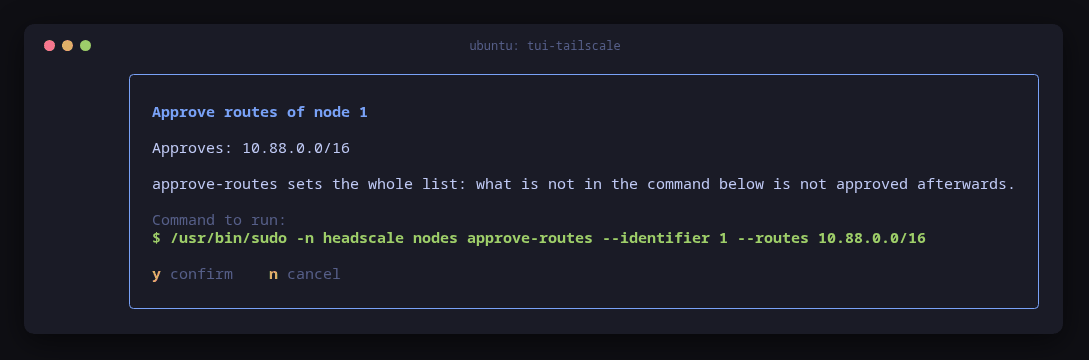
4, then r: approving the route the node advertises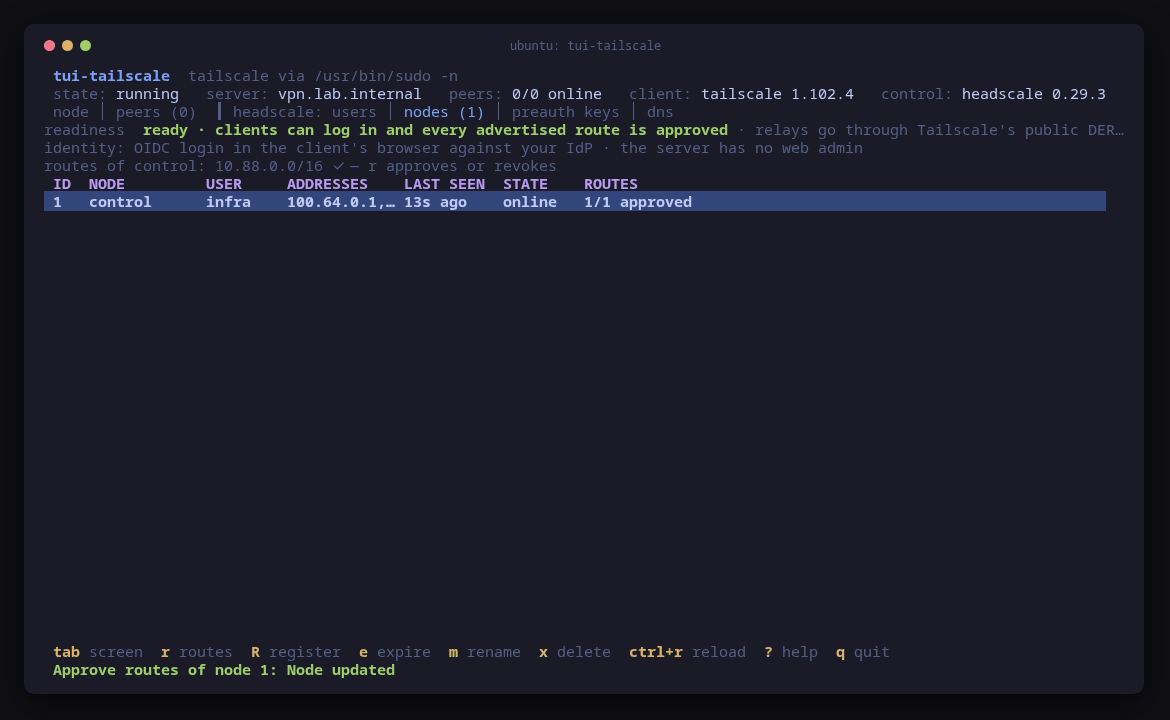
Part three: people join
13. alice joins from the laptop
On the laptop, sudo pacman -S tui-tools/tui-tailscale, i for Tailscale from
Arch’s repositories, then j: the login server, no pre-auth key, hostname
laptop, and accept routes. The join checks the server’s certificate first;
lab-ca is already trusted, so there is no CA step.
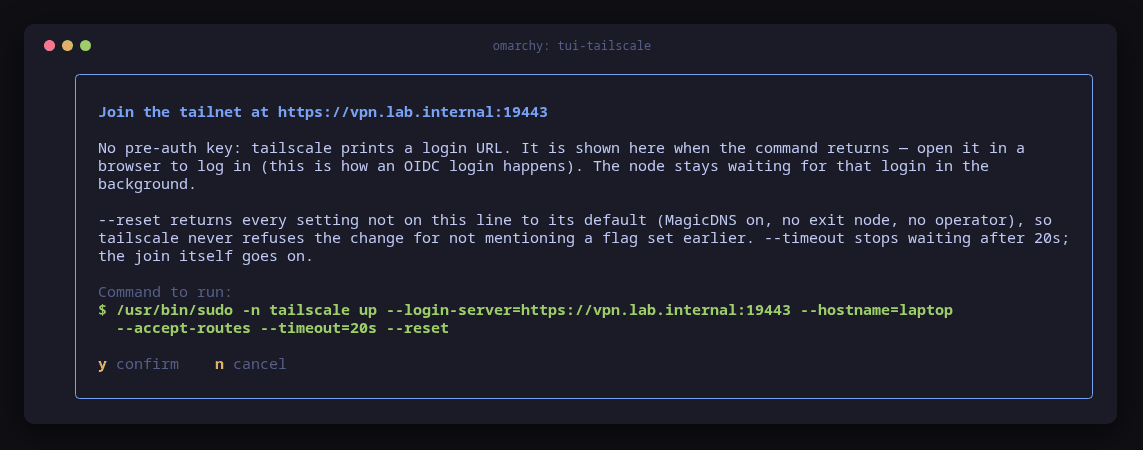
j with an empty key: tailscale will print a login URL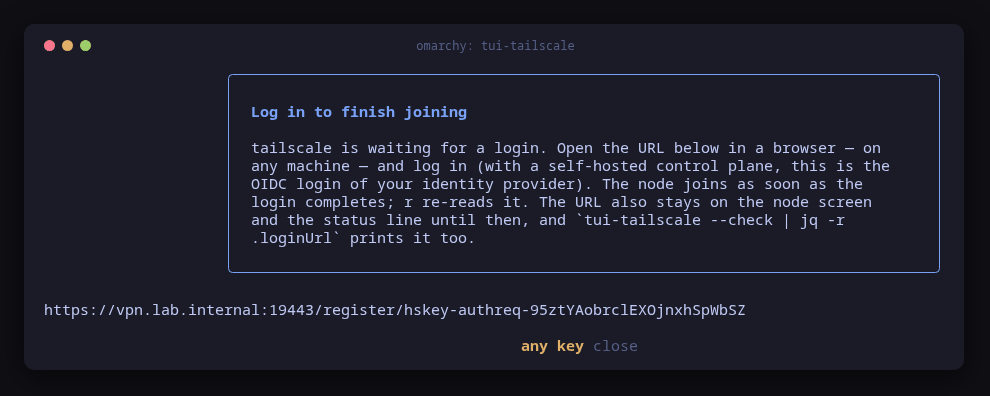
y: the login URL, on its own line outside the frame so it copies wholeOpened in the browser as alice, the URL goes to Headscale, then Keycloak asks for her password and sends her back. Headscale 0.29 then asks her to confirm that the device is hers.
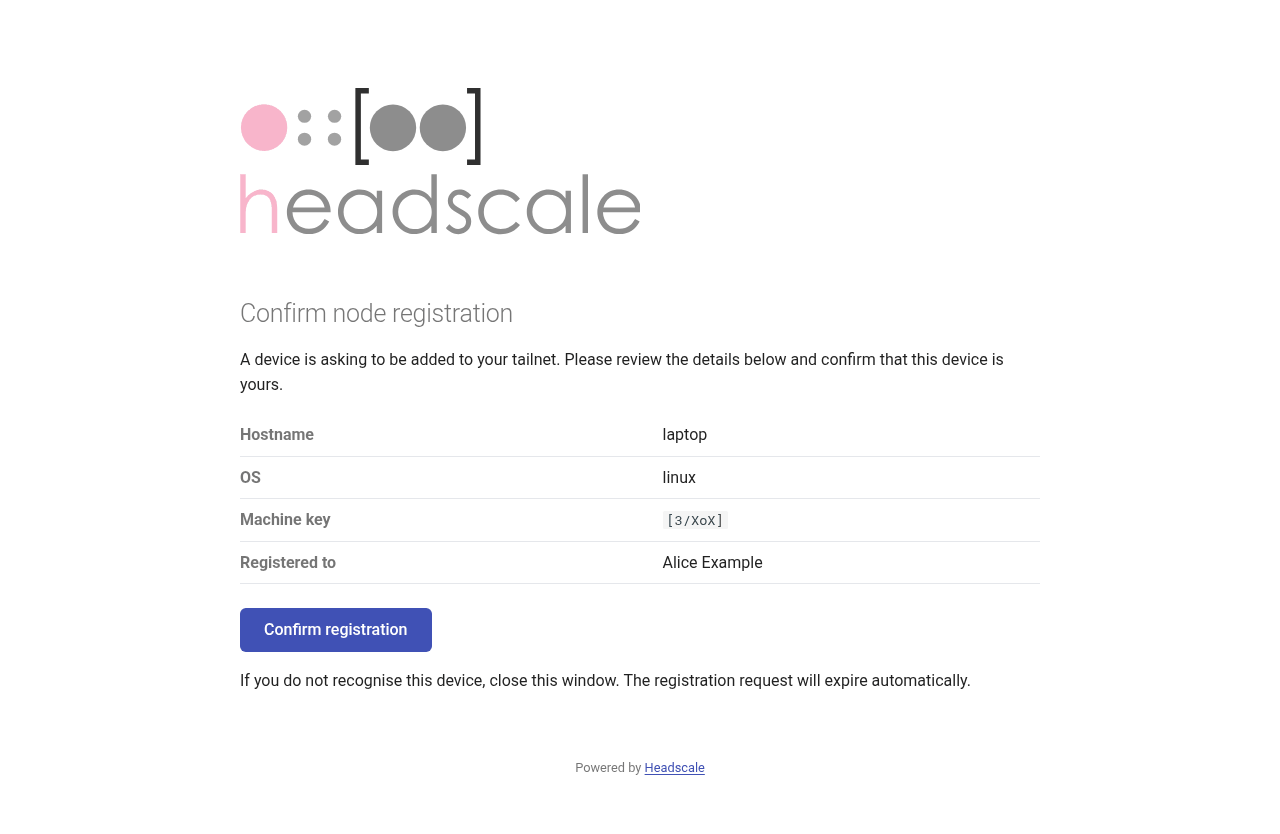
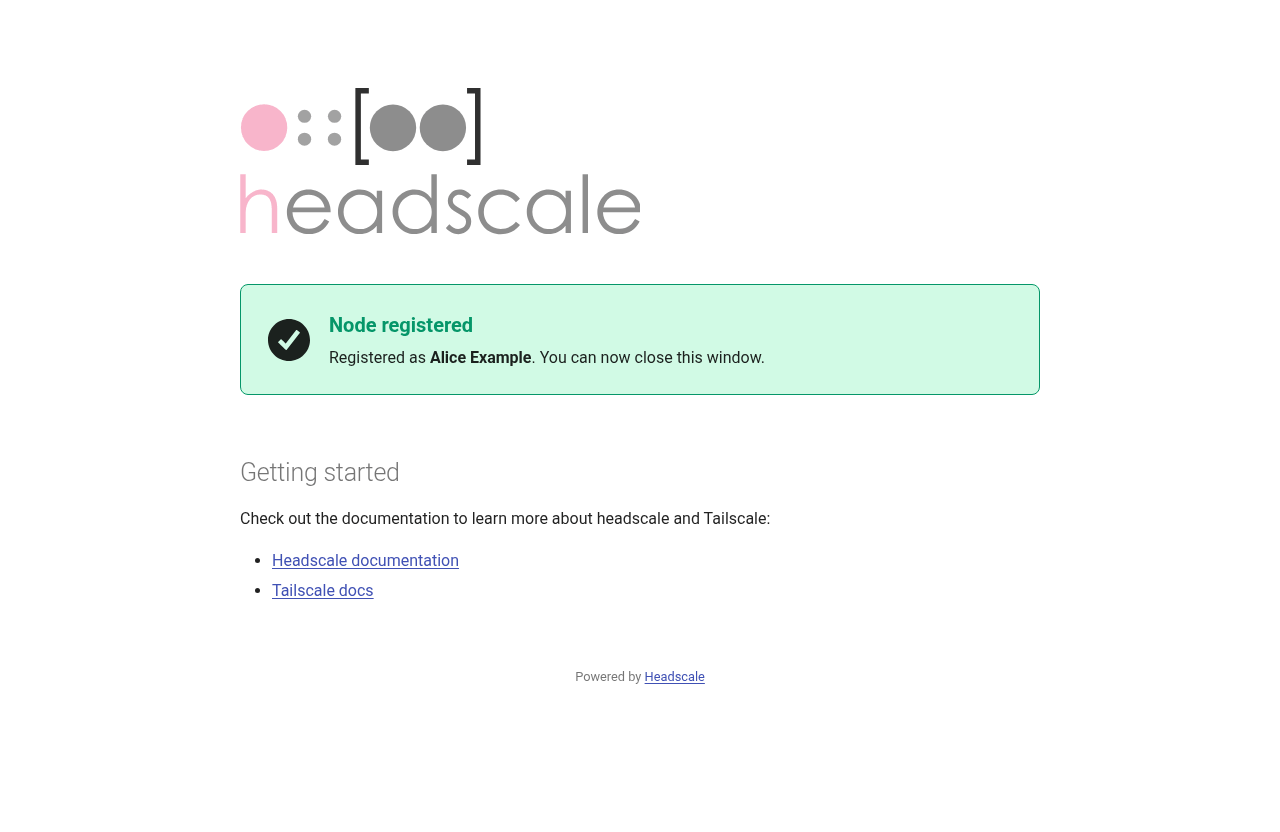
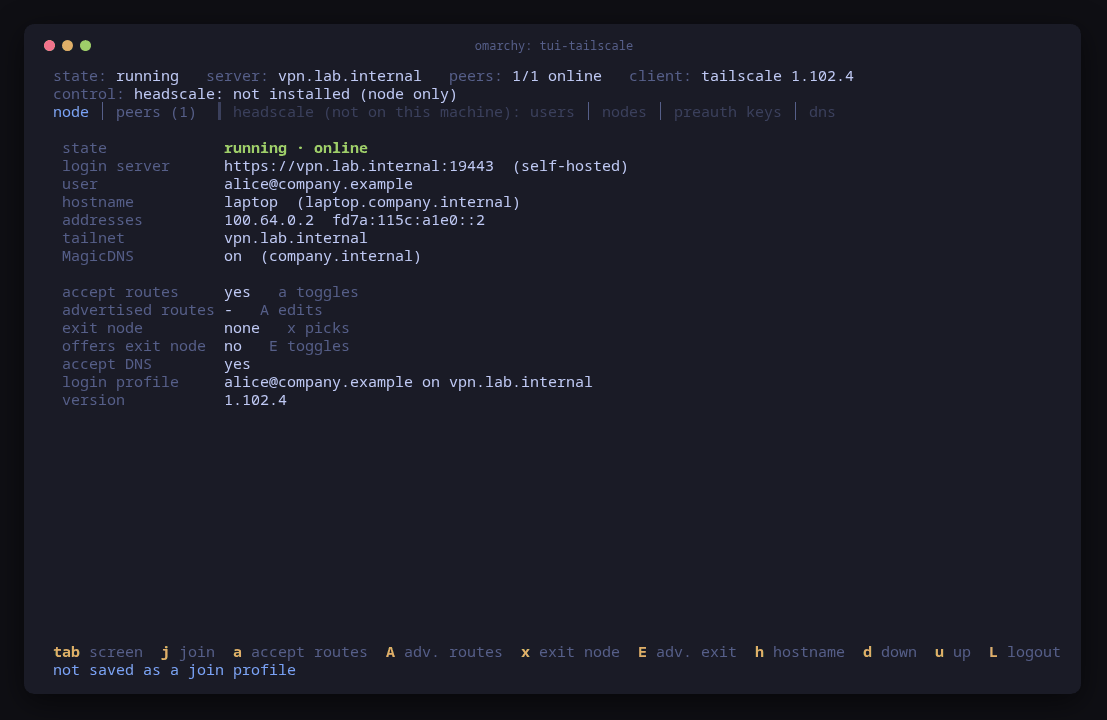
The laptop’s node screen turned to running on its own, since it re-reads while a login is pending. Both laptop frames lack the title row, because at 120 columns the header wraps and pushes it off the top (tui-tailscale#31, open).
$ tailscale ping -c 3 control
pong from control (100.64.0.1) via DERP(sao) in 49ms
pong from control (100.64.0.1) via DERP(sao) in 53ms
pong from control (100.64.0.1) via DERP(sao) in 49ms
$ ping -c 2 10.88.0.1
2 packets transmitted, 2 received, 0% packet loss, time 1001ms
The subnet answers through the approved route, relayed by DERP(sao),
Tailscale’s public relay in São Paulo, as the relays line warned. A DERP server
only forwards traffic that is already encrypted end to end, as Tailscale’s
DERP documentation explains, but
a company that self-hosts will want to know which servers its traffic crosses.
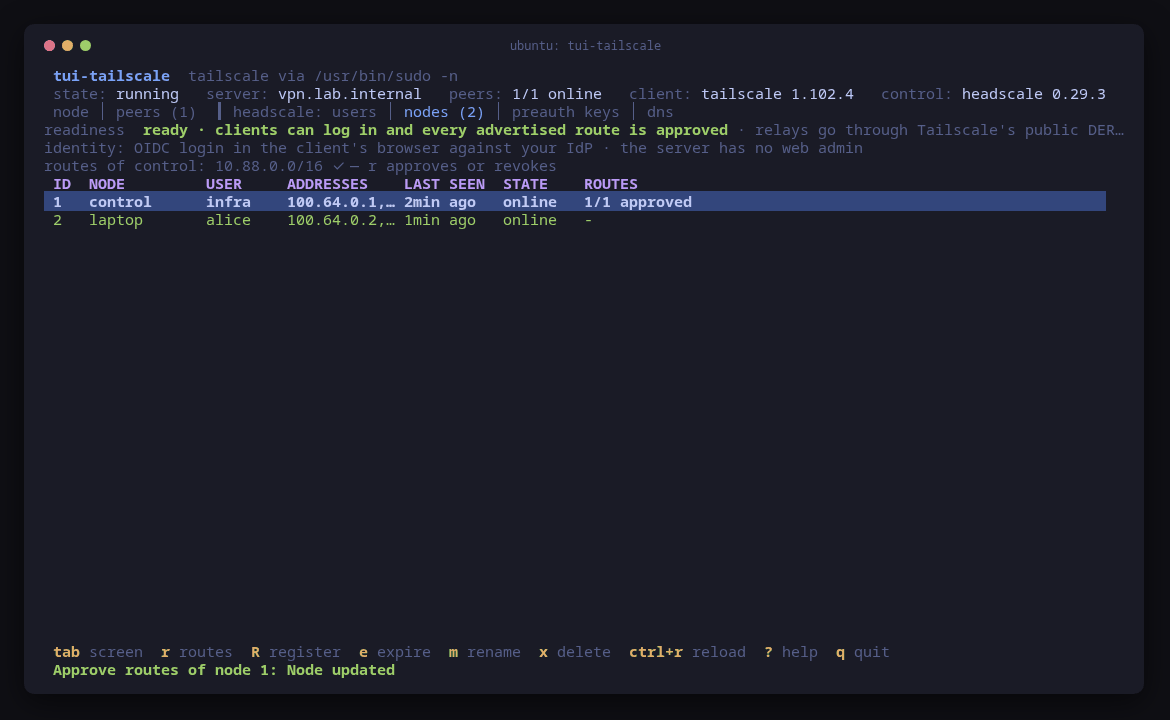
4: laptop, owned by alice, online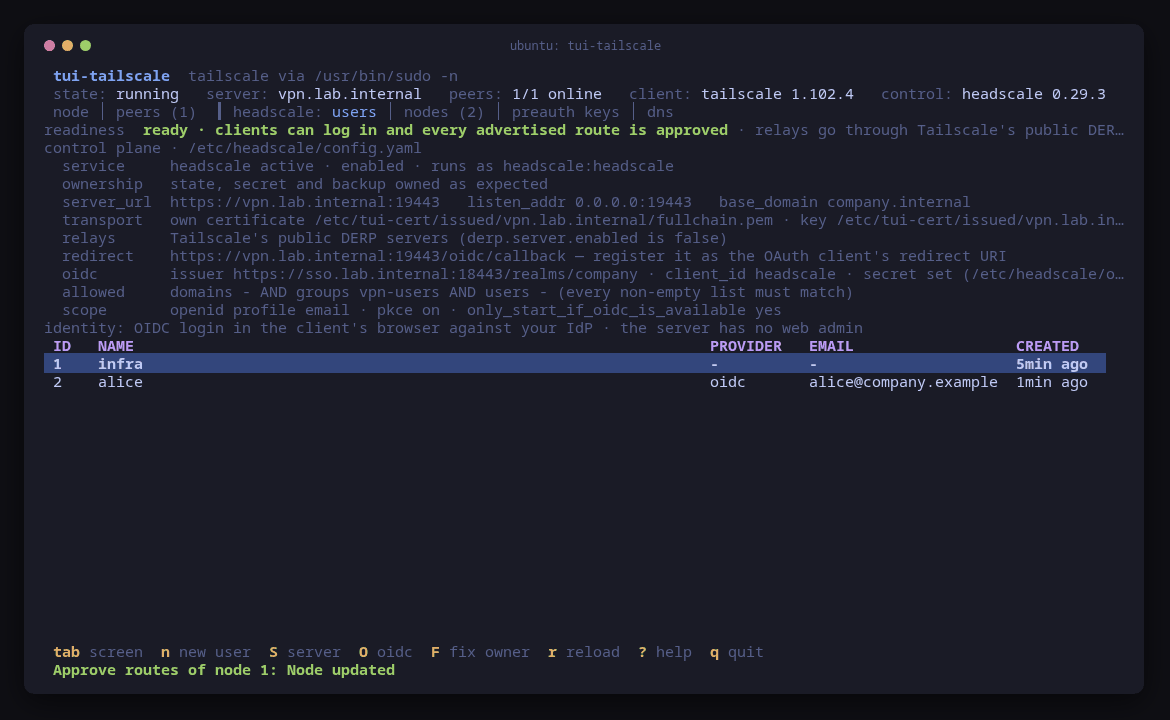
3: alice was created by her first login, provider oidc, with her Keycloak email14. bob is refused
The laptop logs out and joins again with the same answers.
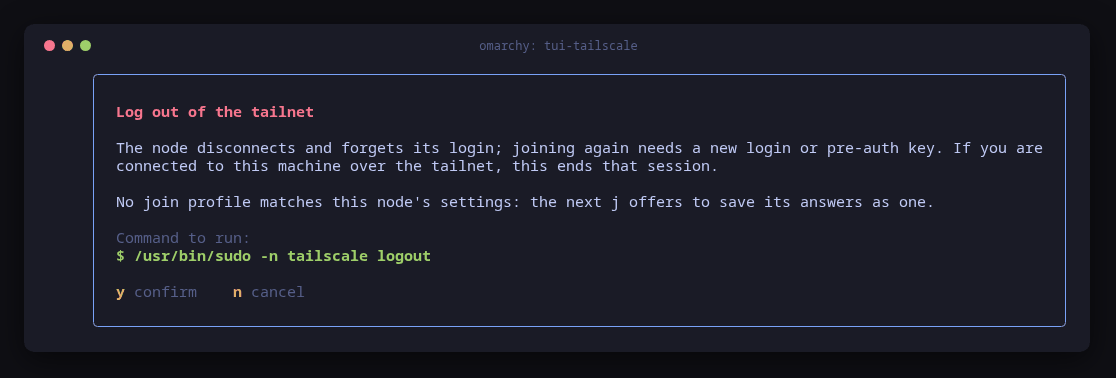
L: log out of the tailnetThis time bob signs in. Keycloak accepts his password, and Headscale says no.
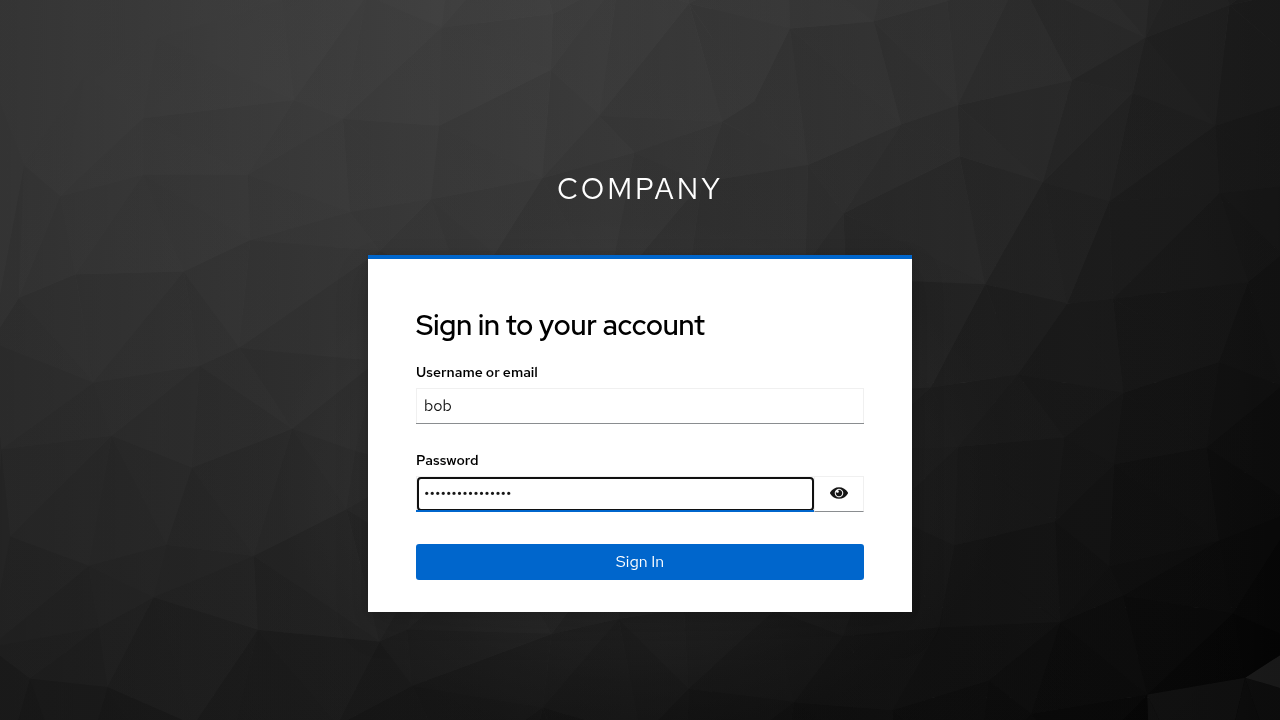
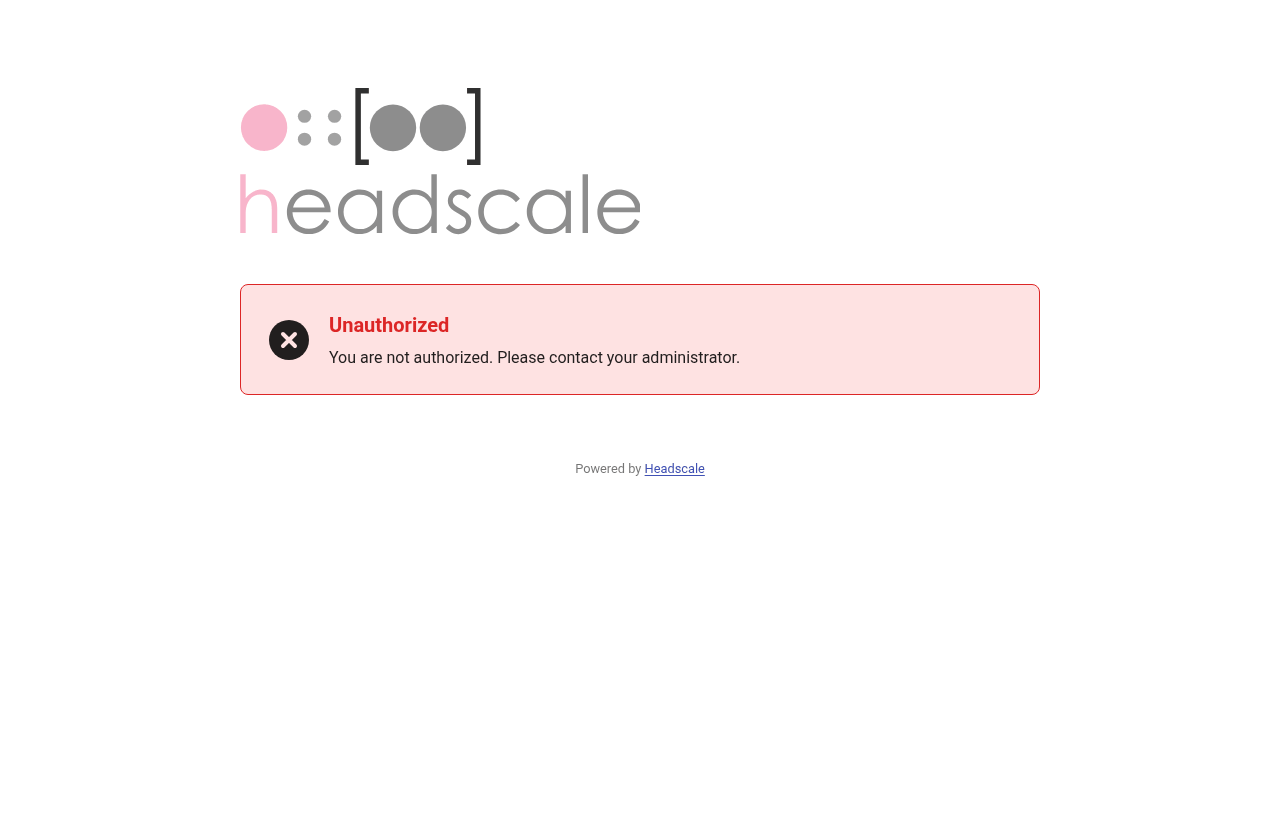
The page tells bob nothing, which is right for him. Headscale’s log tells the administrator why:
ERR user msg: unauthorised group error="authenticated principal is not in any allowed group" code=401
INF http request method=GET path=/oidc/callback status=401
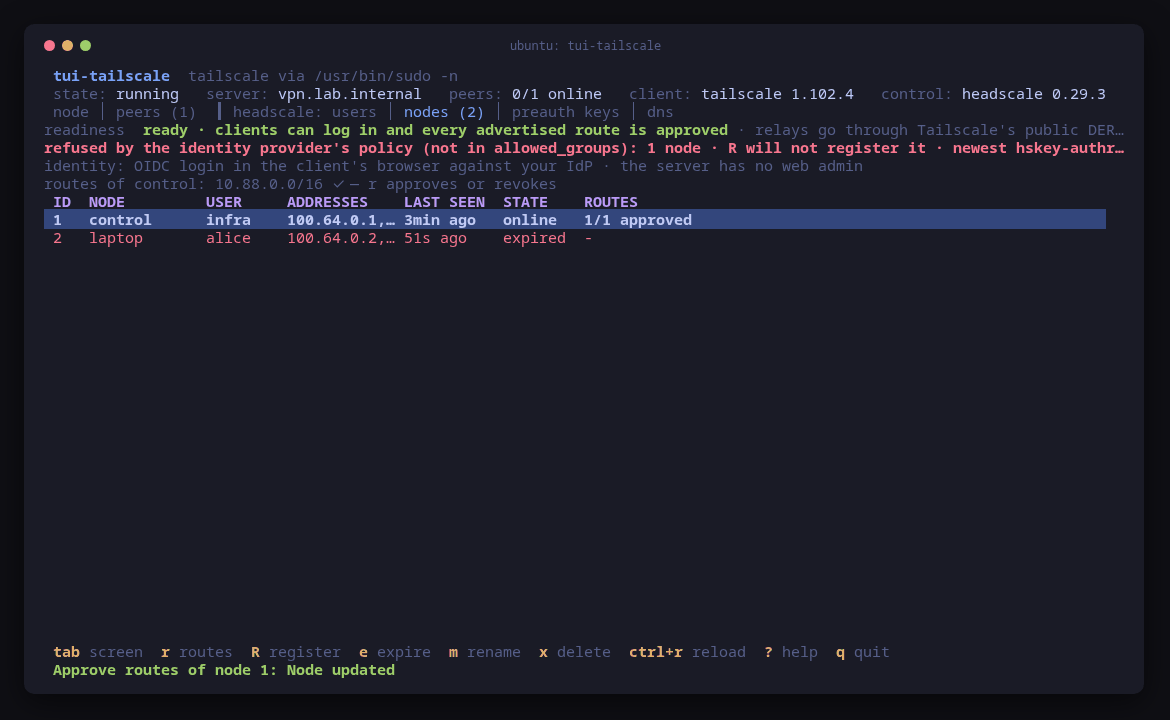
No user and no node were created for him. On the control plane, the attempt
shows as refused by the policy, and R will not register it, so nobody can
register the device around allowed_groups by mistake
(tui-tailscale#26, fixed).
The laptop logged out at the end, and both guests were restored to the snapshots they had before the run.
What we found
A first run of this case, on tui-tailscale 1.0.0, filed the issues below. These seven are fixed in tui-tailscale 1.0.1 and tui-kit v0.4.2, and this run shows each fix where it applies:
- tui-tailscale#23: the apt install hung on needrestart (step 7).
- tui-tailscale#24: the ports read as closed on a ufw host whose ports were open (step 11).
- tui-tailscale#25: tui-firewall installed during a session was still treated as missing (step 11).
- tui-tailscale#26:
Rwas offered for a registration the IdP had refused (step 14). - tui-tailscale#27: nothing said the tailnet relays through Tailscale’s public DERP servers (steps 7 and 12).
- tui-kit#30: diffs lost their indentation (steps 9 and 10).
- tui-kit#31: command previews were not shell-quoted (steps 9 and 10).
Still open, from both runs:
- tui-tailscale#30: the shown-once pre-auth key is cut at the edge of a 120-column terminal.
- tui-tailscale#31: at 120 columns the node screen’s header wraps and pushes the title row off the top.
- tui-tailscale#32:
fcould hand the closed ports to tui-firewall instead of an empty rule list. - tui-firewall#26: rule previews with a comment are not shell-quoted.
- tui-kit#36:
render-screenshots --from-ansicannot crop columns, so cropped dialogs stay off-center in these images. - tui-cert#24: export without ssh, the trust status line on Ubuntu, numeric owners for containers, and a quick way to clear prefilled fields.
- tui-tools/pkgs#13, in the family’s packaging repository, which is private: the headscale package reports
v0.29.3+dirty.
What the run proves: a Headscale control plane set up entirely through tui-tailscale, with a certificate from a tui-cert CA, admitted a Keycloak user in the allowed group through a browser login with verification on, routed a subnet to her, and refused a Keycloak user outside the group. What it does not prove: behaviour where nodes reach each other over UDP, names served by real DNS, traffic that crosses the host firewall, or any identity provider other than Keycloak 26.7.4.
Related guides
- A private tailnet with your own CA: the same control plane and CA with pre-auth keys and no identity provider, including the CA step a join takes when the laptop does not trust the CA yet.
- Self-hosted Tailscale with Headscale and Google login:
a public control plane with Let’s Encrypt and Google, and why
allowed_groupsstays empty there. - A local CA with tui-cert: the CA in depth, including untrusting it and what each finding means.
- Opening ports on a cloud image’s iptables firewall: step 11 on a cloud image whose INPUT chain ends in a REJECT.